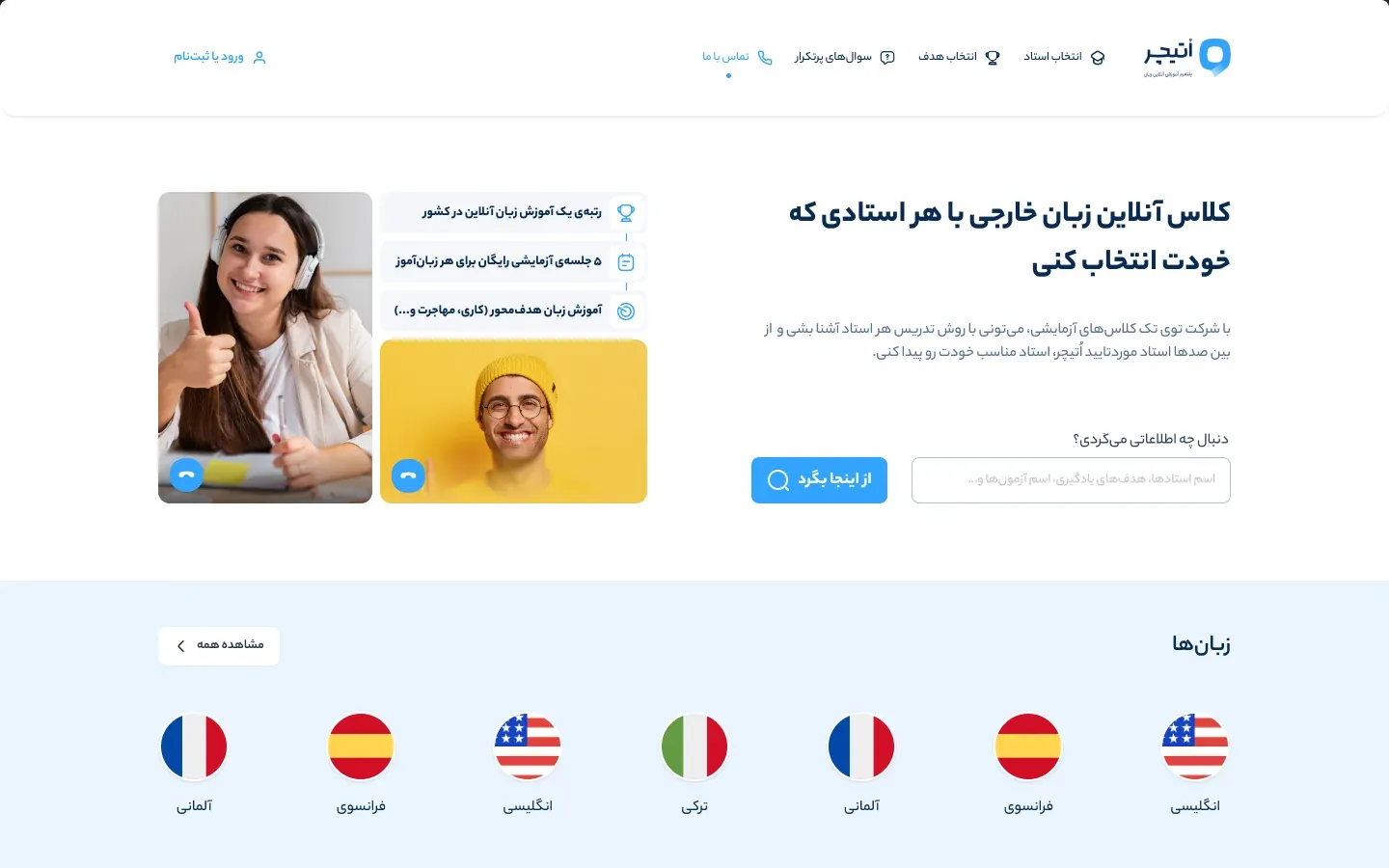
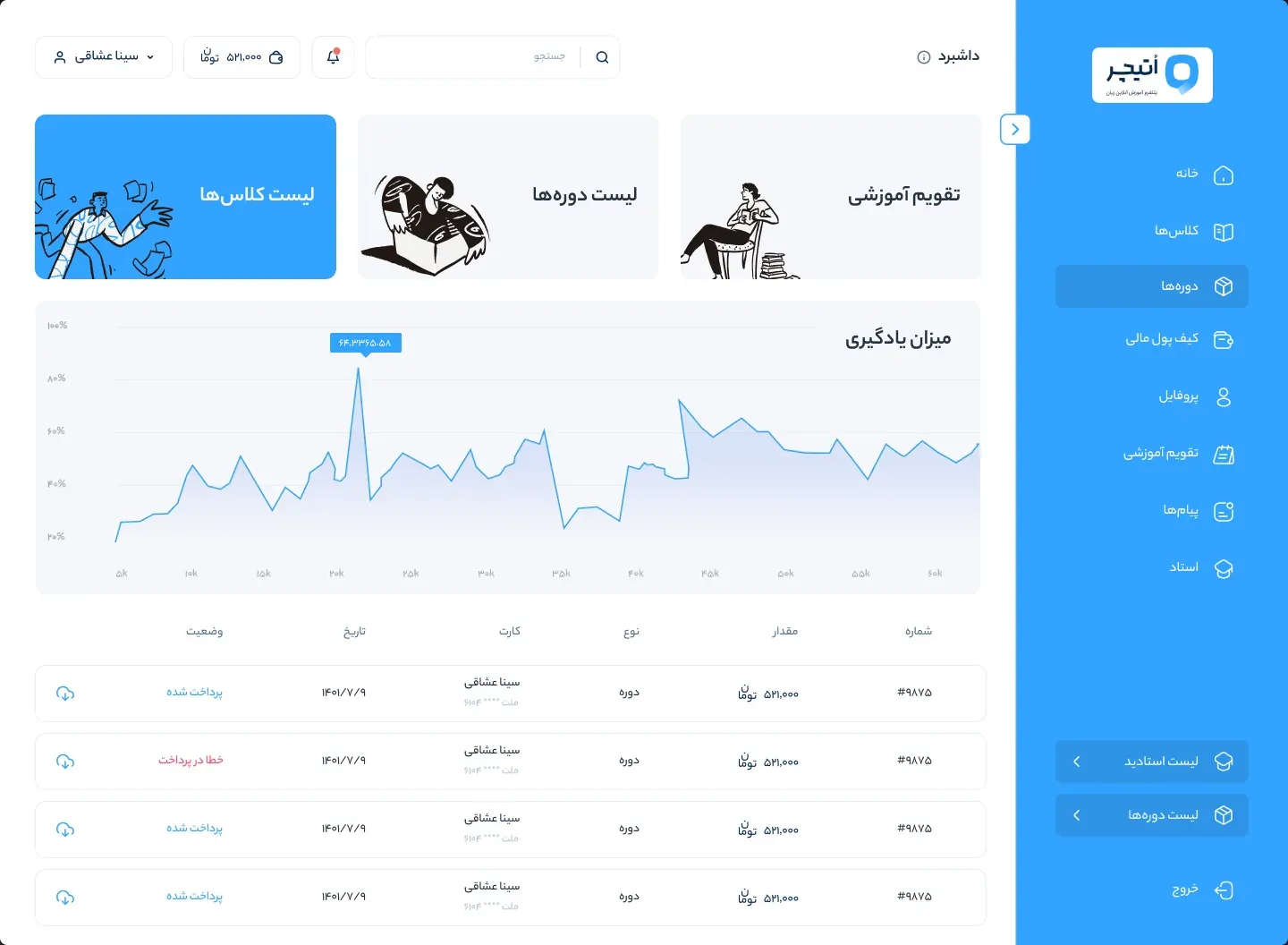
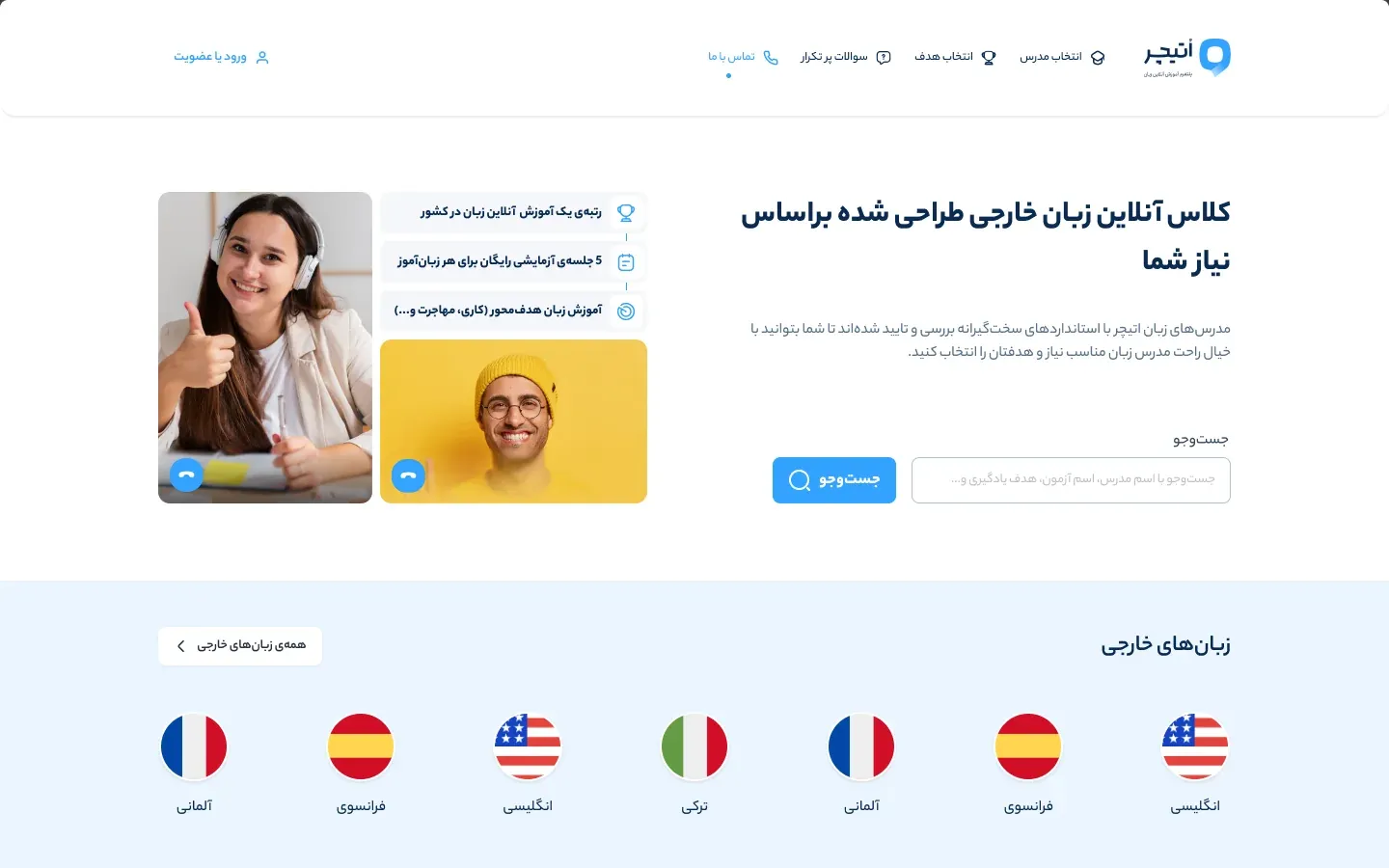
The old site was crowded, squeezed booking into a pop-up and gave learners no clear way to choose a teacher, while teachers lacked the tools to run their classes. The strategy called for a new website and a new panel.
The role
Sina was the product designer: the review of the old site, the structure and flows, the website, booking, the learner, teacher and admin panels, the design system and the usability test, working with the product manager.
The result
Shipped in 2023. Three years on, oteacher.org still runs on this foundation, three-step teacher finder included.
Figure 01
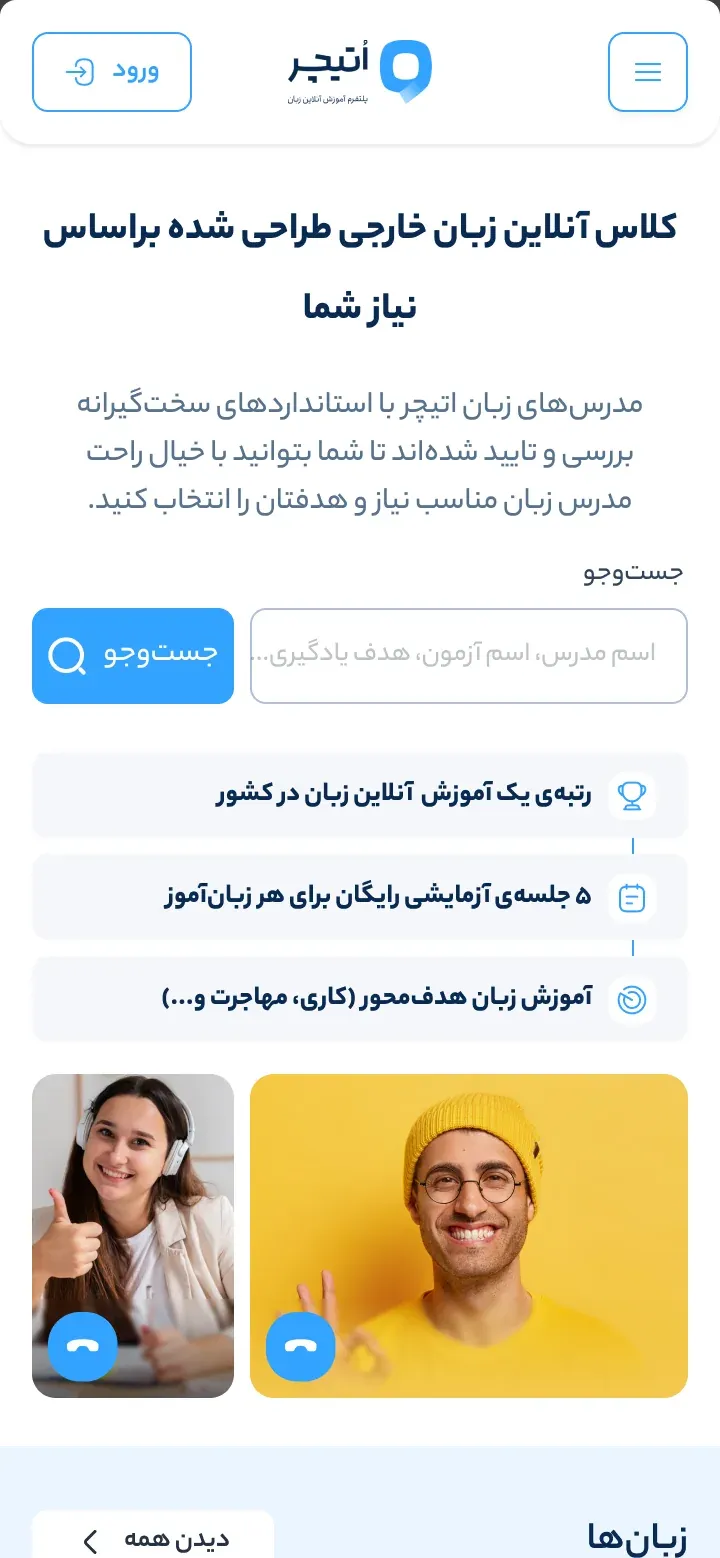
Figure 01The home page on a phone, and its three-step teacher finder.
01Context
From a strategy to a product people use
OTeacher is an Iranian marketplace for live online language classes: learners choose a teacher, often start with a trial class, and book. The strategy Sina worked out with the product manager ended in a roadmap with two product initiatives, a new website and a new panel. The strategy has its own case study; this one follows the design.
The product is in Persian, so its screens read right to left. The captions say in English what each screen shows.
02Problem
What the old site got wrong
The strategy’s interviews had named what each side was missing. Learners wanted a teacher who fitted their goal and found the learning path unclear; teachers wanted better tools for teaching, and more income.
In February 2023 Sina reviewed the old oteacher.org screen by screen, 69 screens in all, and tagged every problem as visual, structure, product or copy. The main ones:
The home page was crowded and repeated the same call to action.
Choosing a learning goal did not narrow the results to that goal.
Booking, the step that matters most, was squeezed into a pop-up.
Inner pages had no breadcrumb and no way back.
Questions and answers were spread over many pages instead of one.
Most of these sit at two moments, choosing a teacher and booking a class. The decisions below start there.
How the work ran in 2023
01
ReviewJanuary and February: a benchmark of other products, then the screen-by-screen review of the old site and a click-tracking plan for its home page.
02
ConceptsLate February: five ideas, then 36 concept screens of the panel, the profile, the teacher list and the home page. The first design-system parts came before them.
03Structure
Structure before screens
Sina mapped the information architecture of four areas: the website, the learner panel, the teacher panel and the admin. A role manager gives the team three levels of access, for roles from top manager and admin to support, operators and finance.
Each feature then got a short spec, linked to its Confluence page for the developers and tracked from “needs review” to “done”. Booking, for example, was specified as six steps: lesson, class type, date, time, number of sessions and payment, with other learners added for a group class.
The main journeys were drawn as flows:
A teacher applies: details, lessons, age groups and certificates, then an expert review and an interview before the first class.
A learner joins and attends a class.
A class is cancelled by the learner, by the teacher, or several sessions at once.
A user signs in, and each role sees only what it may do.
The teacher-apply flow is why the admin holds an interview link, a time and an interviewer for every request.
04Key decisions
Five decisions behind the design
Each answers a problem from the review or the interviews. The chapters after this show them on screen.
01
Ask three questions before showing teachers
Learners could not tell which teacher fitted them, and the old home page was crowded. A language, a goal and a level narrow the list before it opens.
Alternatives
A teacher list with filters alone. It stays one step away for learners who prefer to scan.
Trade-off
One more step before the first teacher appears, in exchange for a shorter, better-matched list.
Evidence
The finder is still on oteacher.org’s home page.
05Teacher finder
Three questions before a list of teachers
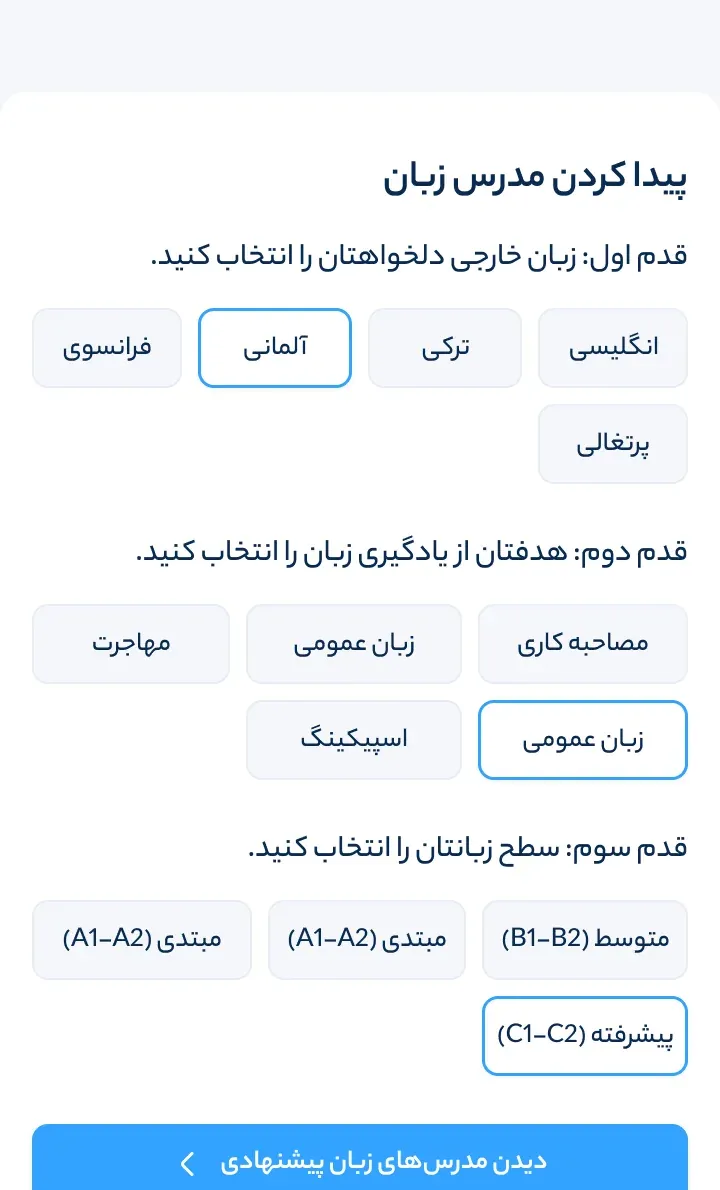
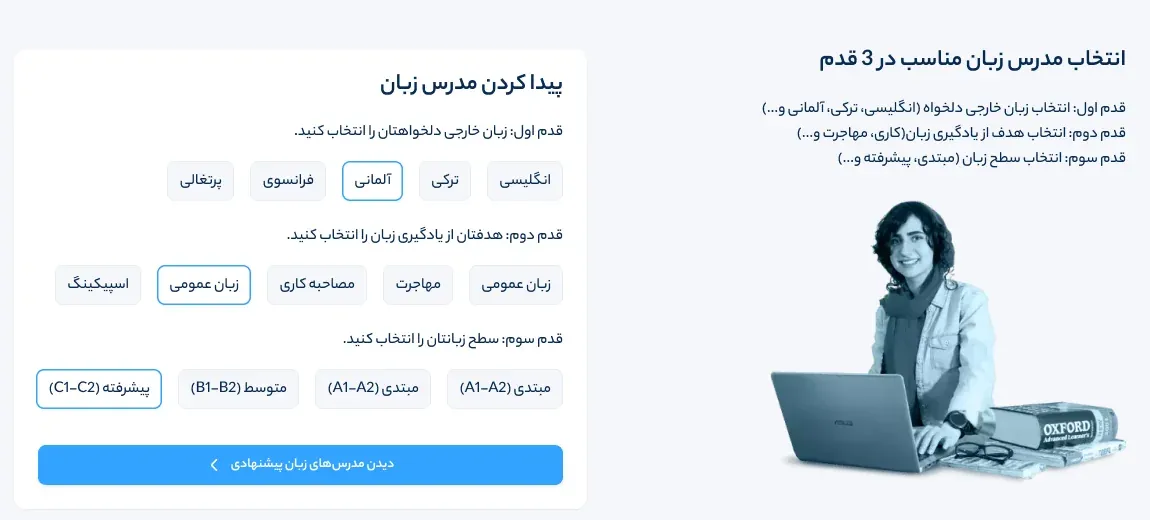
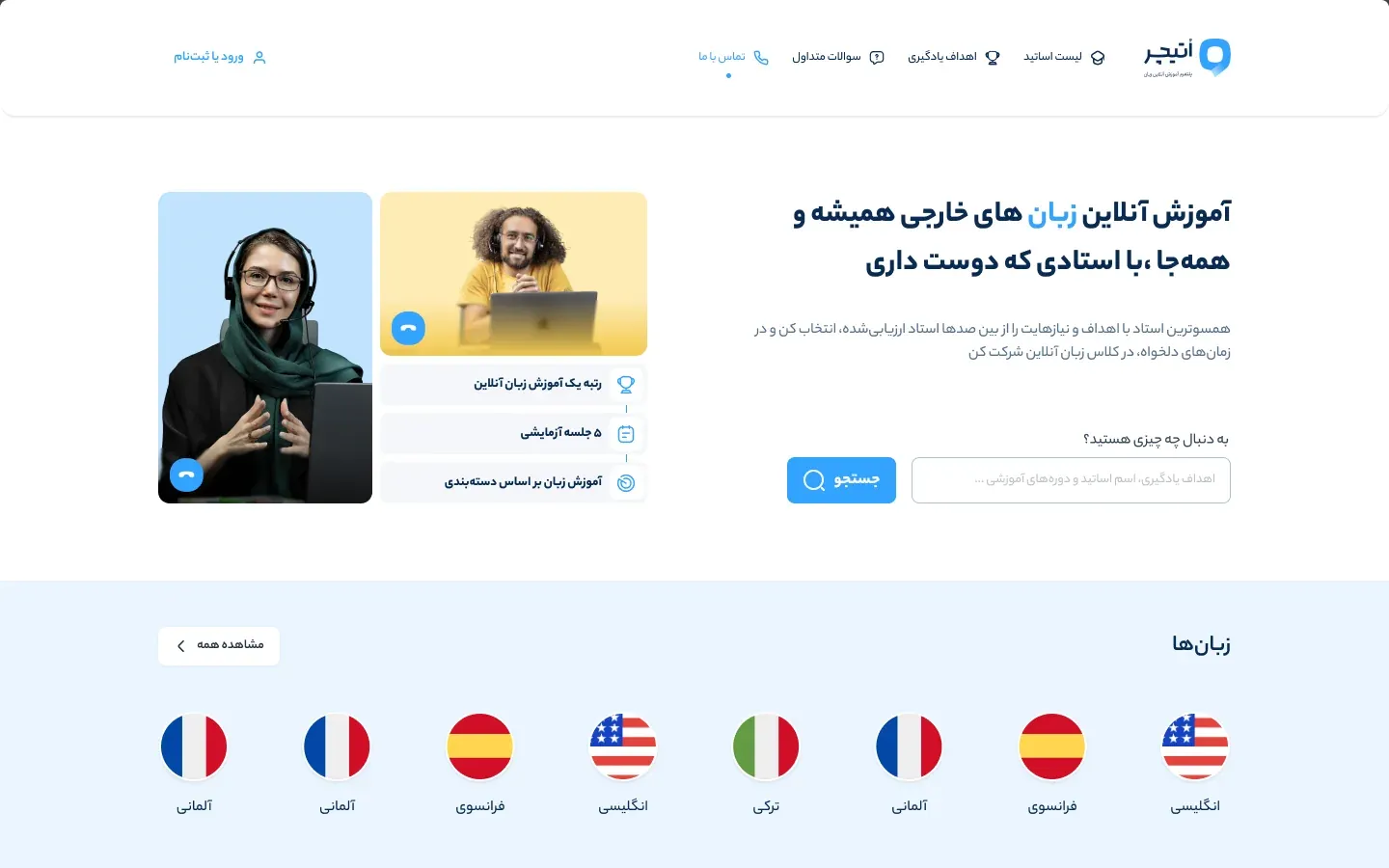
The home page asks three short questions: which language, what for (a job interview, everyday use, speaking or migration), and at which level, from beginner to advanced. The answers open a list of suggested teachers for that language.
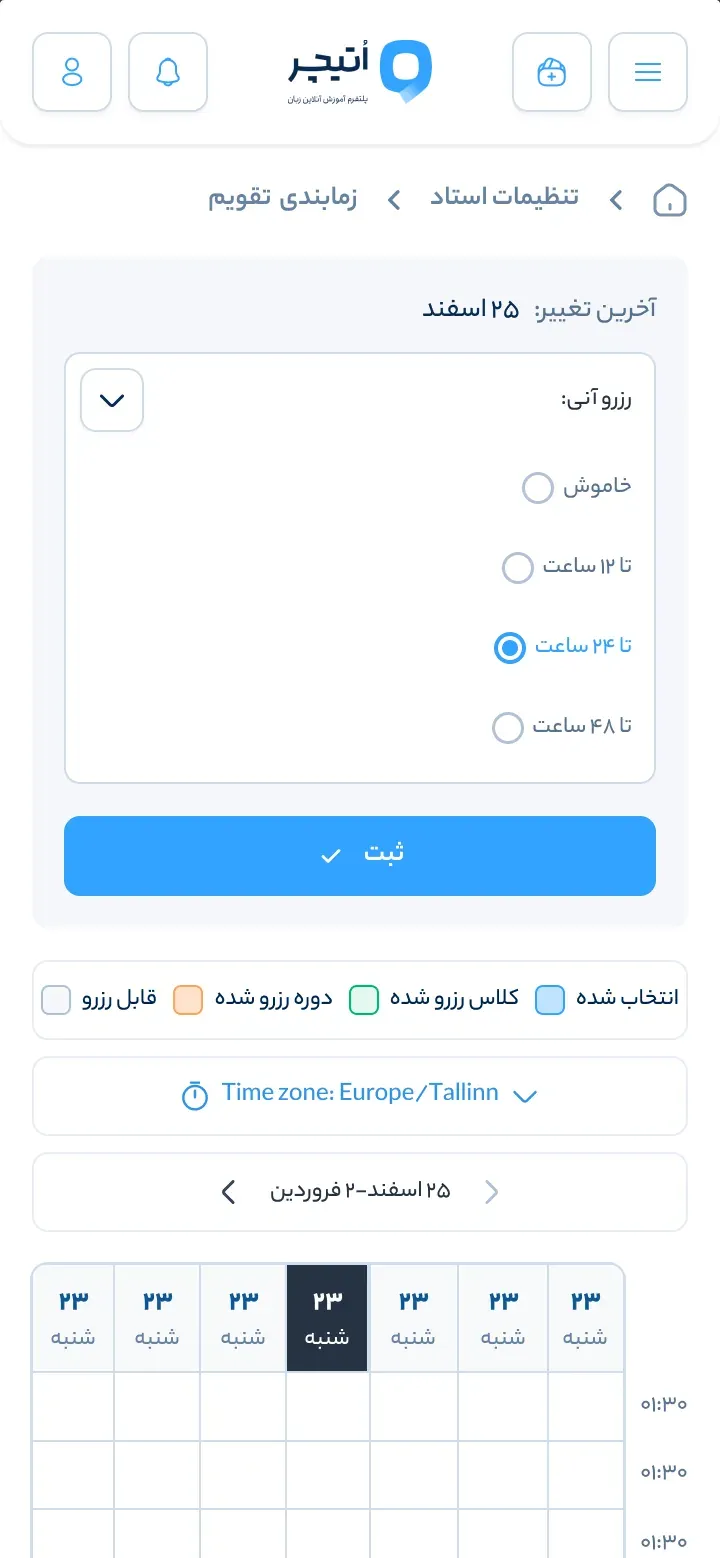
The teacher list keeps the same logic as filters: language, goal, a trial class, today, the teacher’s gender, a date and a time of day. On a phone they open as sheets from the bottom. A consultation link helps learners who want advice, and a learner with no classes yet is offered a matching teacher from the empty class list.
Three answers do the work of a long filter panel, and the list keeps the filters for learners who would rather scan.
Desktop
Phone
Figure 02The three-step teacher finder on the desktop home page and on a phone.
06Booking
Browse freely, book on pages of its own
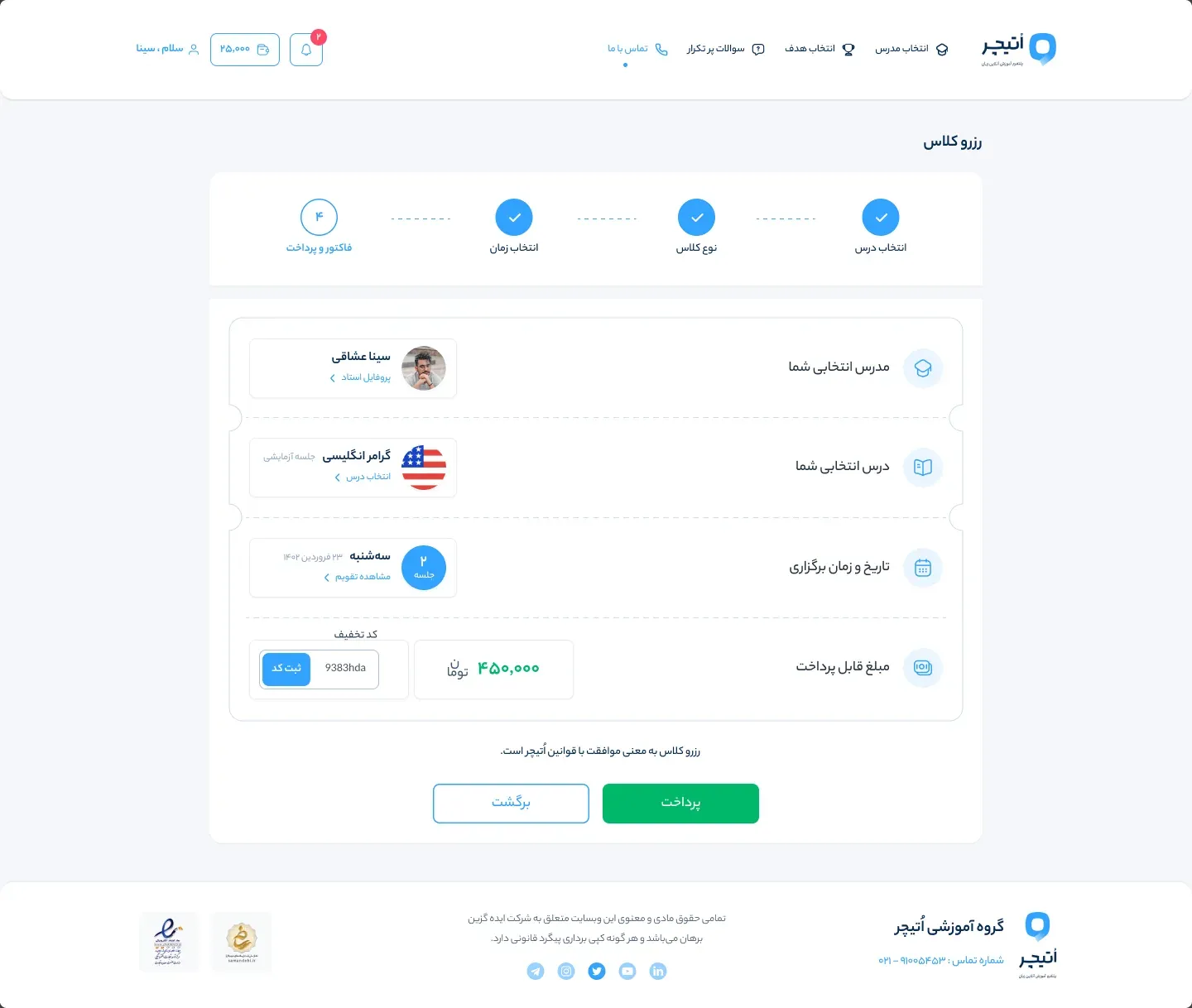
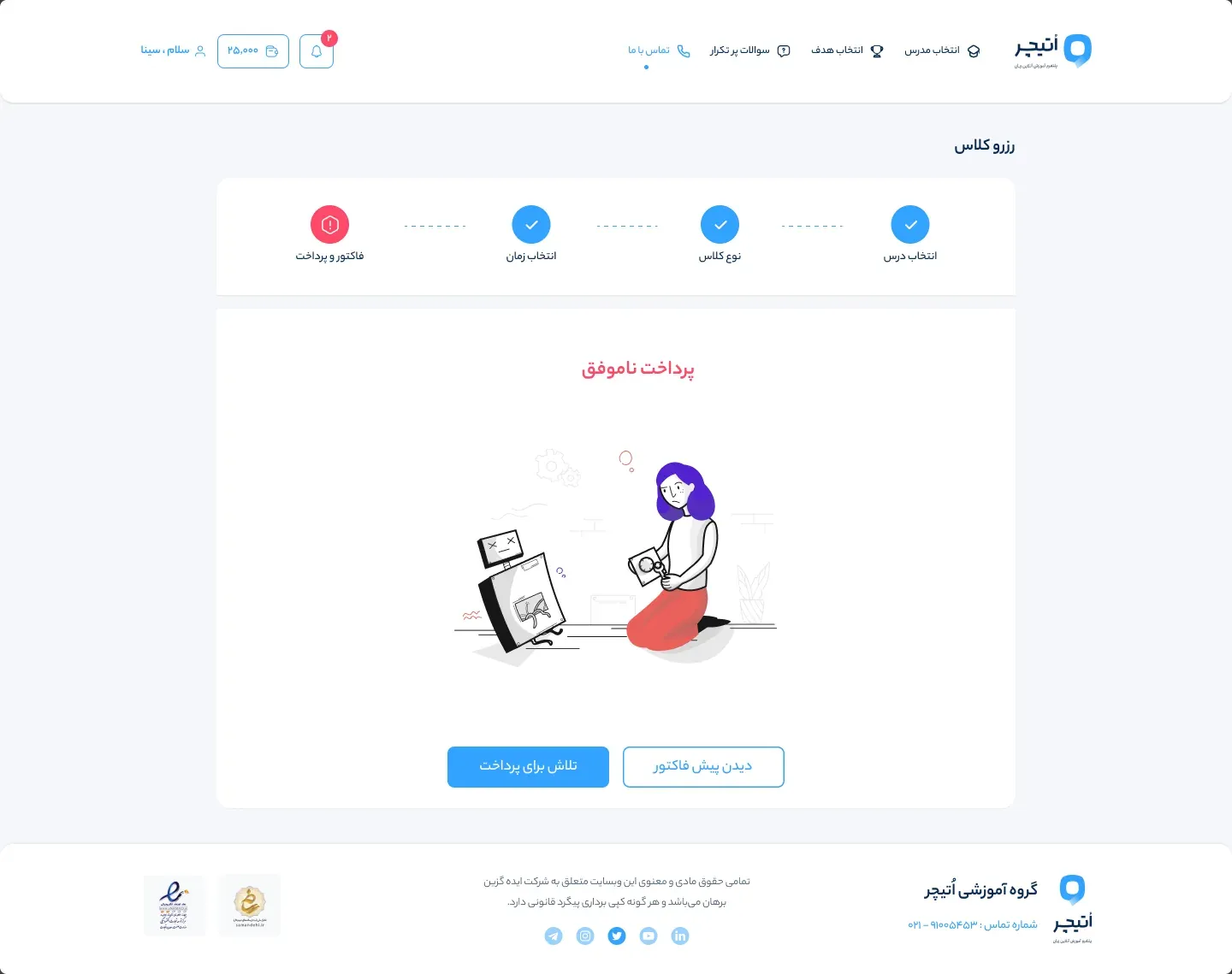
The review’s sharpest note was about booking: the old site squeezed it into a pop-up, and it matters too much for that. In the new design booking runs over its own pages: a lesson, the class type and a package, a time in the teacher’s calendar, then the invoice and payment. A trial class takes the same steps.
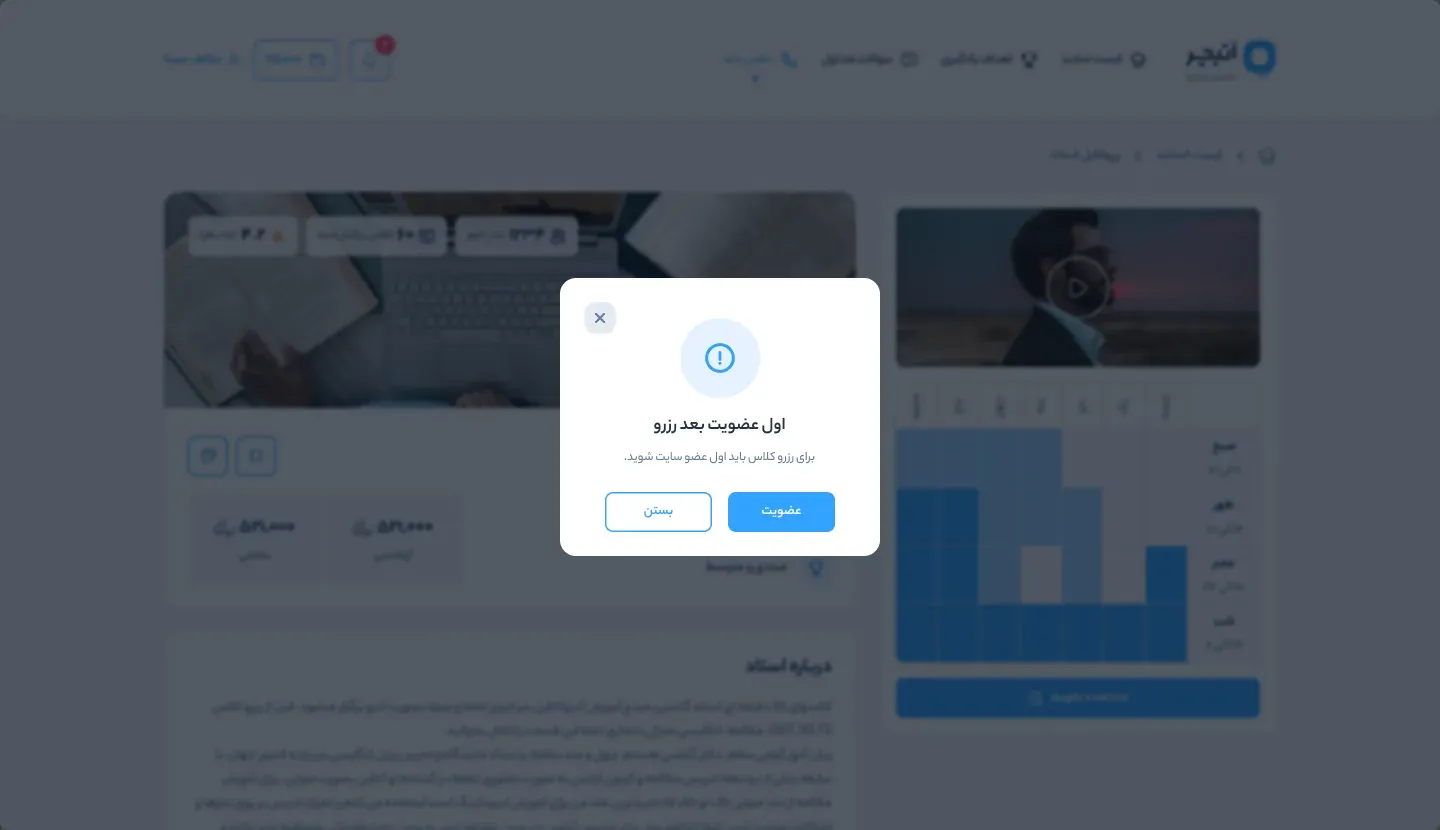
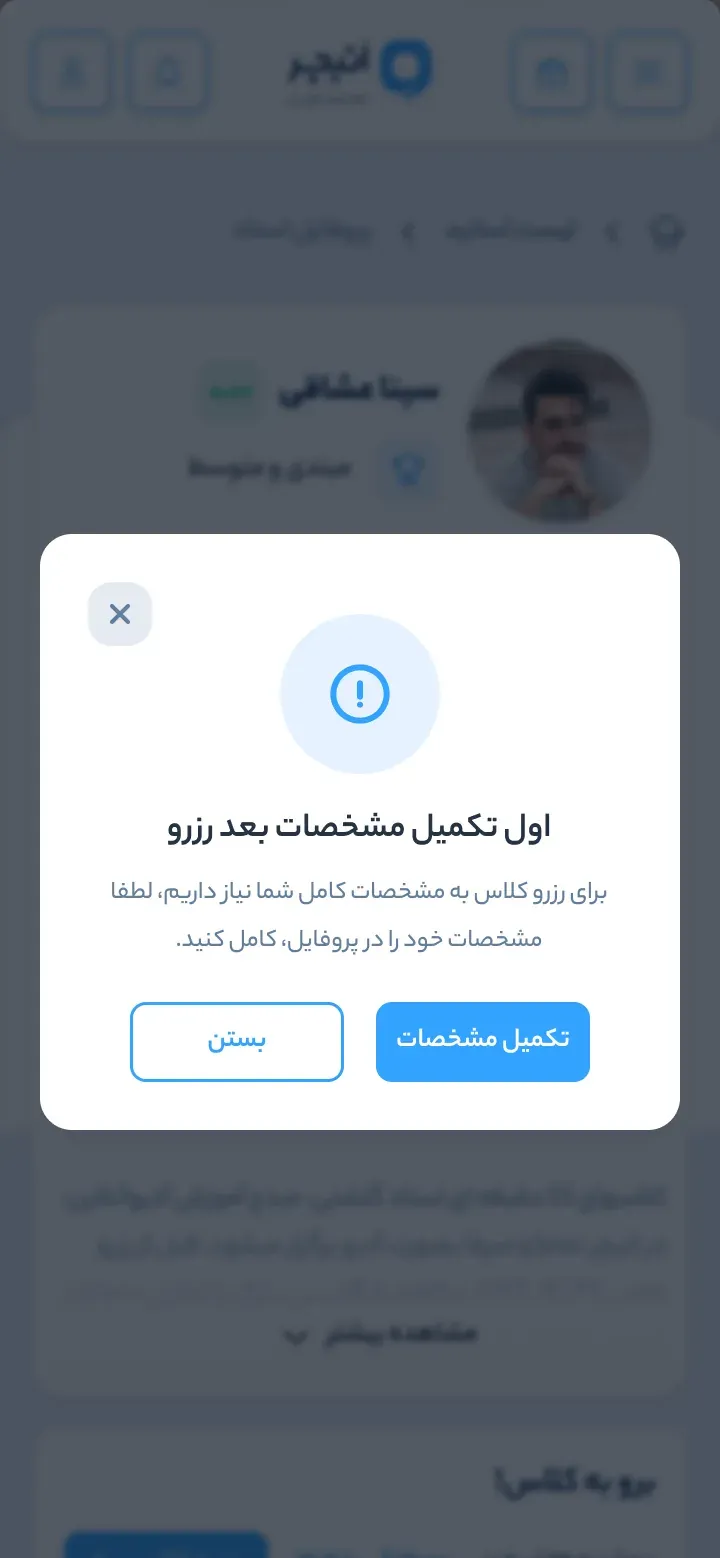
Visitors can see teachers, courses and calendars without an account. The prompt to sign up, or to complete missing details, appears only when they try to book. Success and failure each get a screen of their own.
Asking for an account only at the moment of booking keeps the first visit open.
Sign up first, then book
07Calendar
A calendar written as eight stories
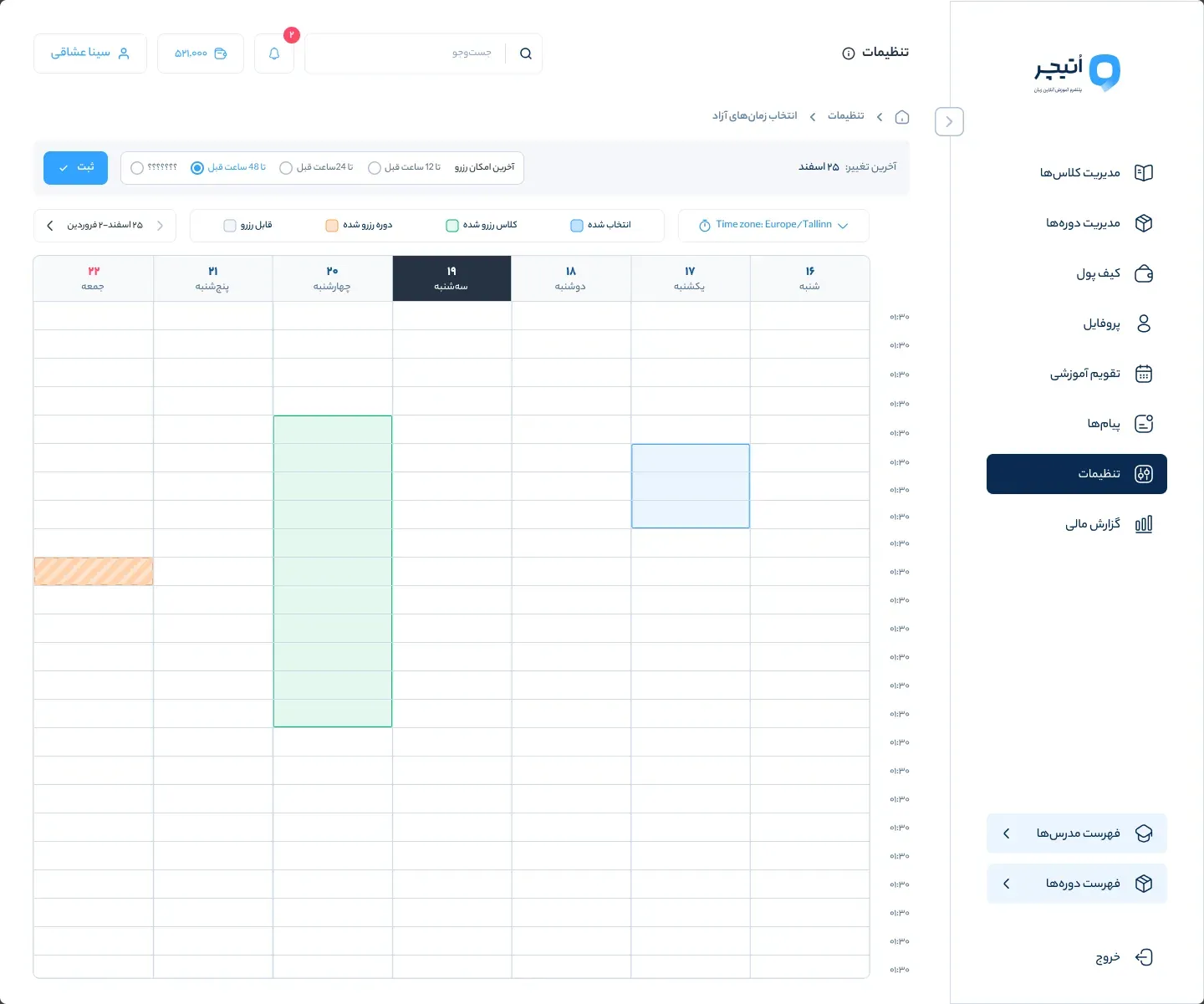
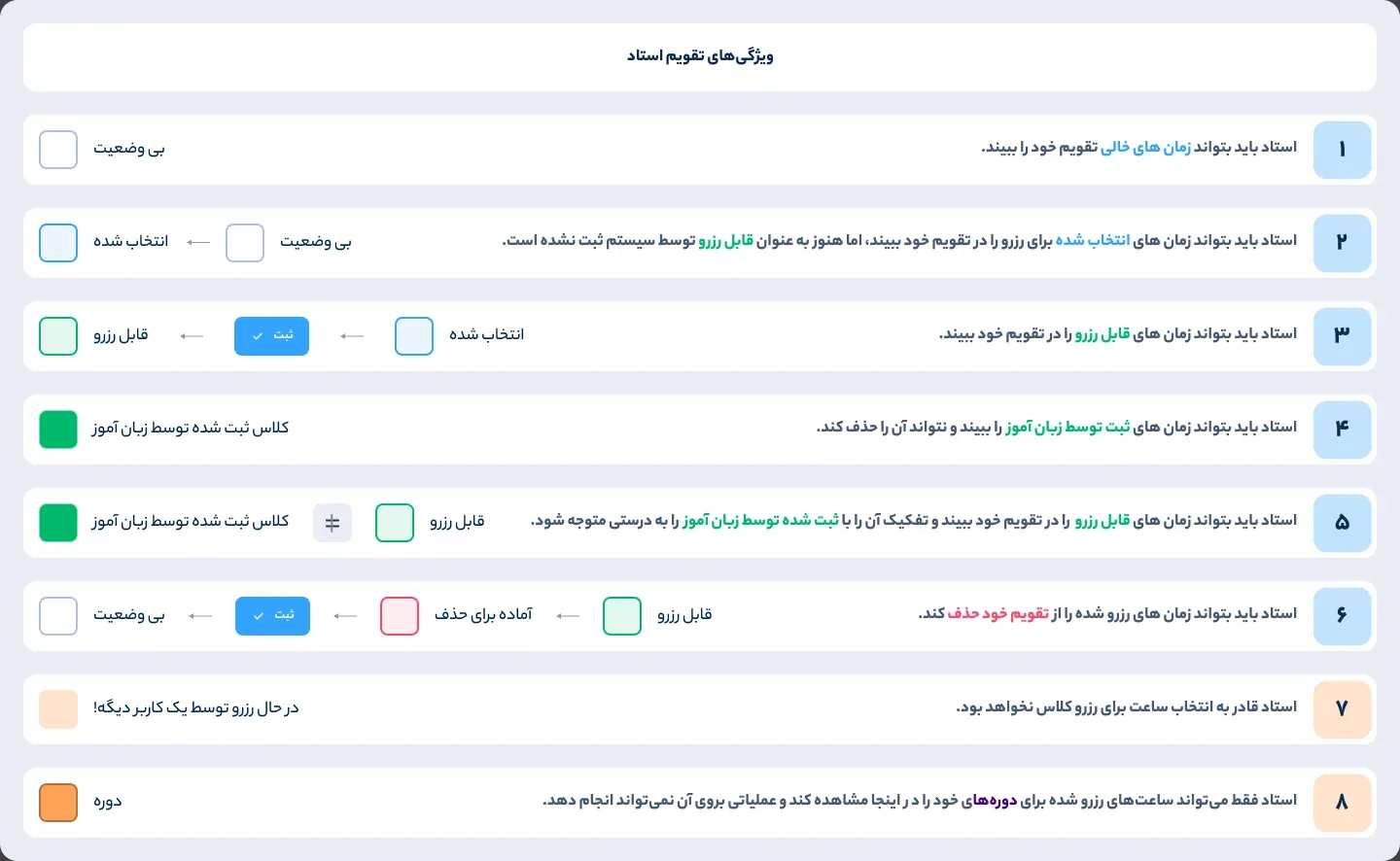
Time is the hardest thing to show in a class marketplace, so the teacher calendar started from user stories. Eight stories name the states an hour can be in: free, selected, bookable, booked by a learner, ready to delete, being booked by someone else, and part of a course.
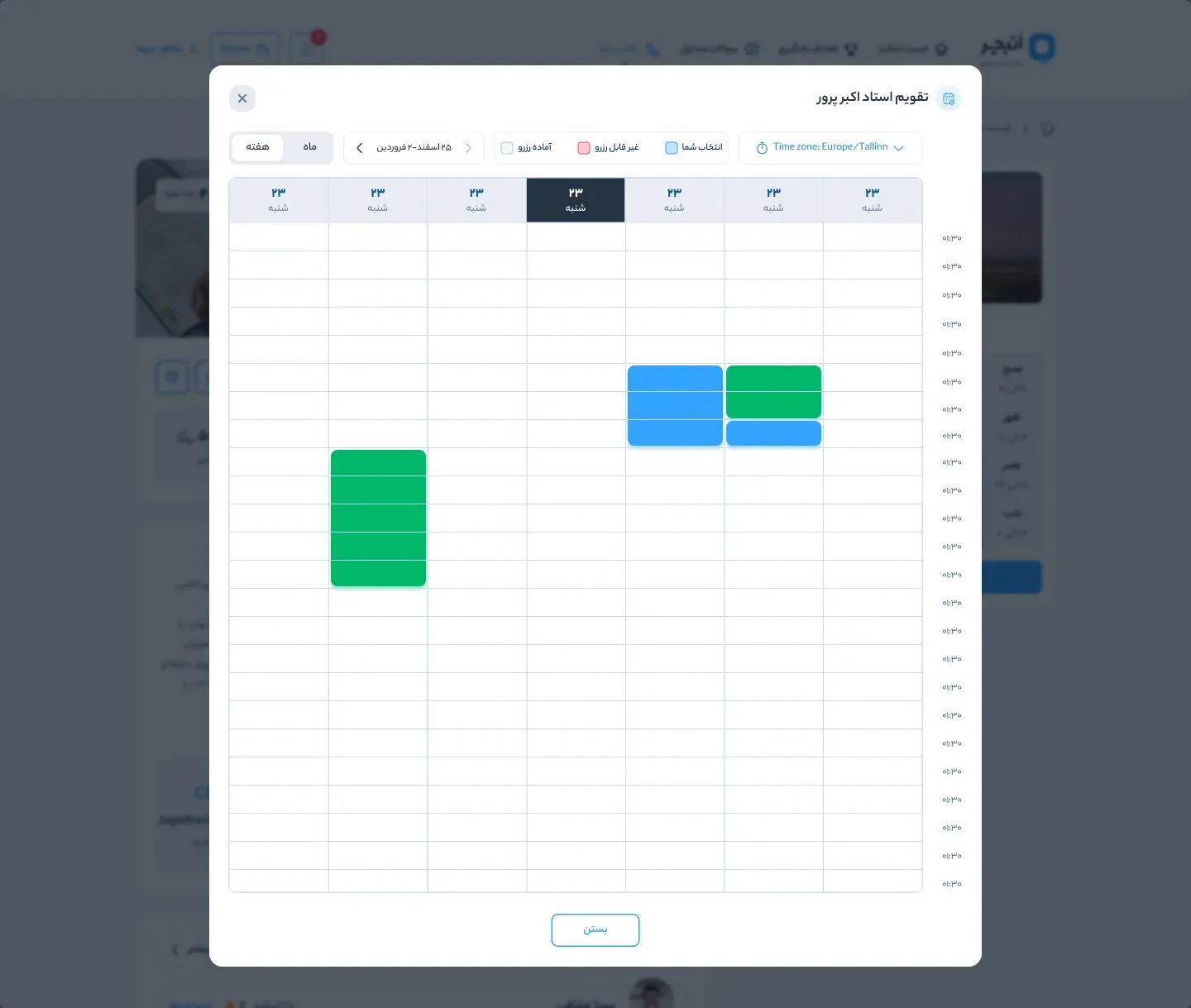
The same states run through the teacher’s calendar, the calendar a learner sees on a teacher’s profile and the booking steps, always with the time zone shown.
The eight stories, translated from the Persian:
The teacher can see the free times in their calendar.
The teacher can see the times they selected for booking, before the system has registered them as bookable.
The teacher can see the bookable times in their calendar.
The teacher can see the times a learner has registered, and cannot delete them.
The teacher can tell bookable times from the times a learner has registered.
The teacher can delete the times they opened for booking from their calendar.
The teacher cannot choose a time for a class while another user is booking it.
The teacher can only see the hours reserved for their courses, and cannot act on them.
Seven states in eight stories: the calendar had to say who holds each hour, the teacher, a learner or a course.
The teacher’s calendar
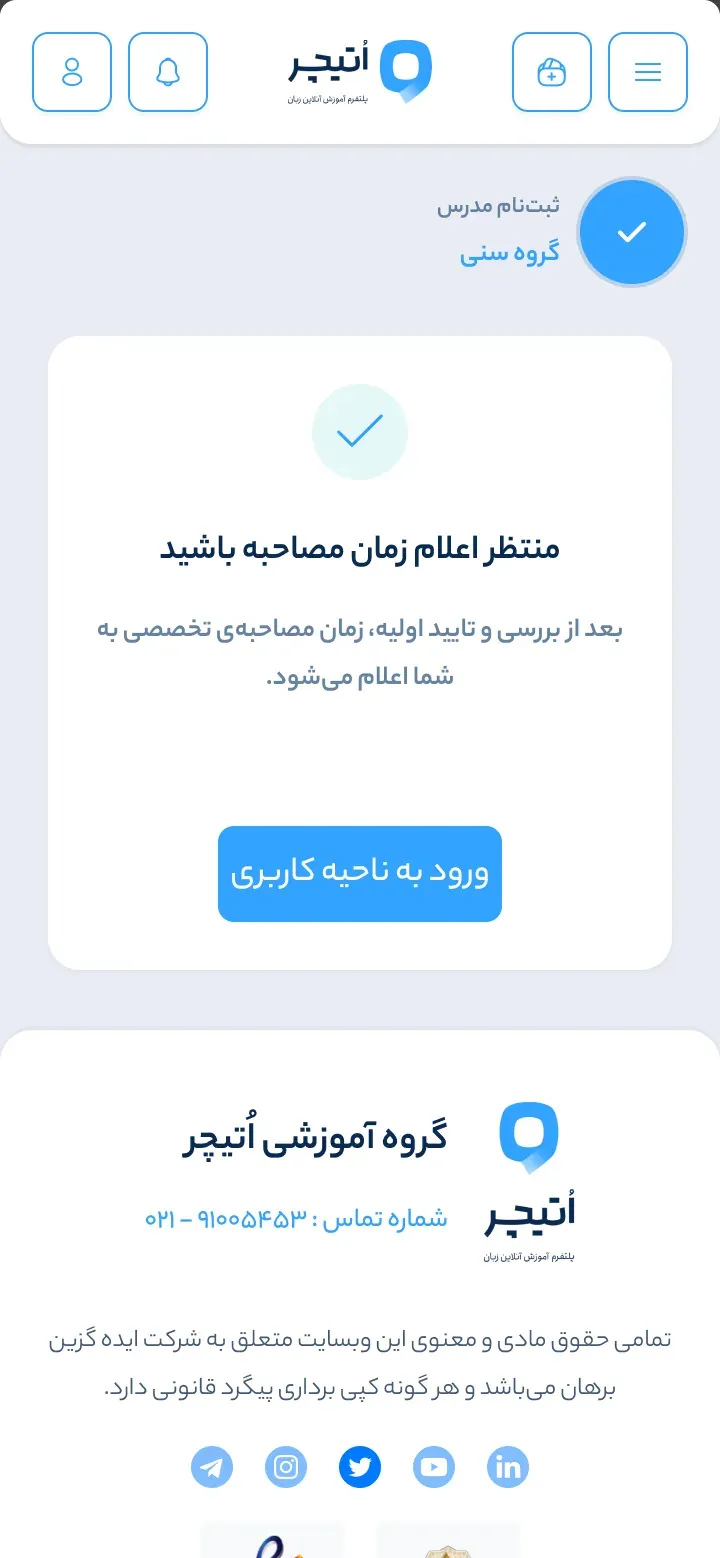
Figure 05The eight user stories as drawn, in Persian, each with the state it adds.
08Teachers
Teachers apply in steps, then run their own classes
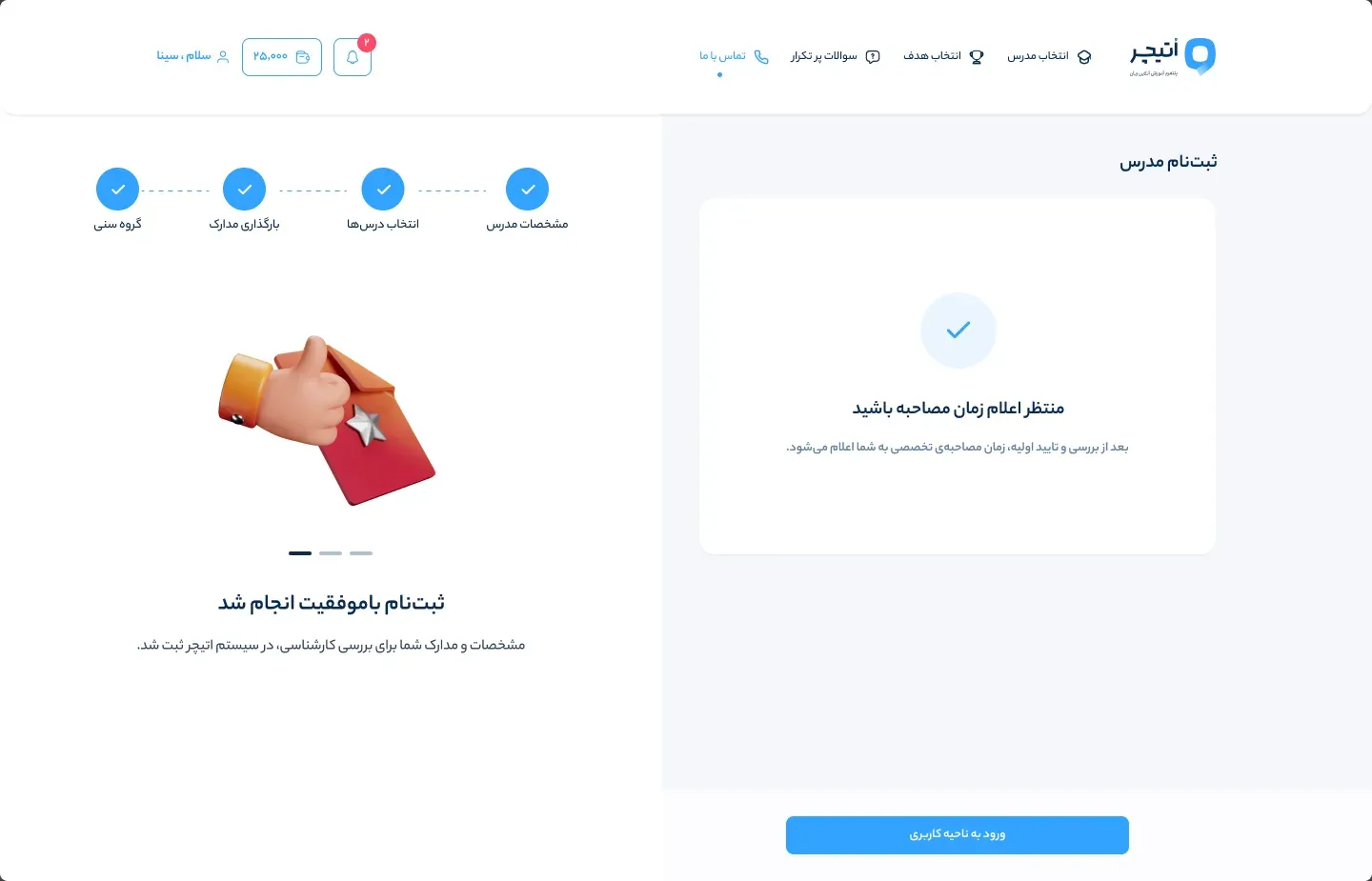
Becoming a teacher takes five steps: age groups, personal details, the courses to teach, identity and qualification documents, and a last screen that waits for the interview time. Each request then reaches the admin with its interview link, time and interviewer.
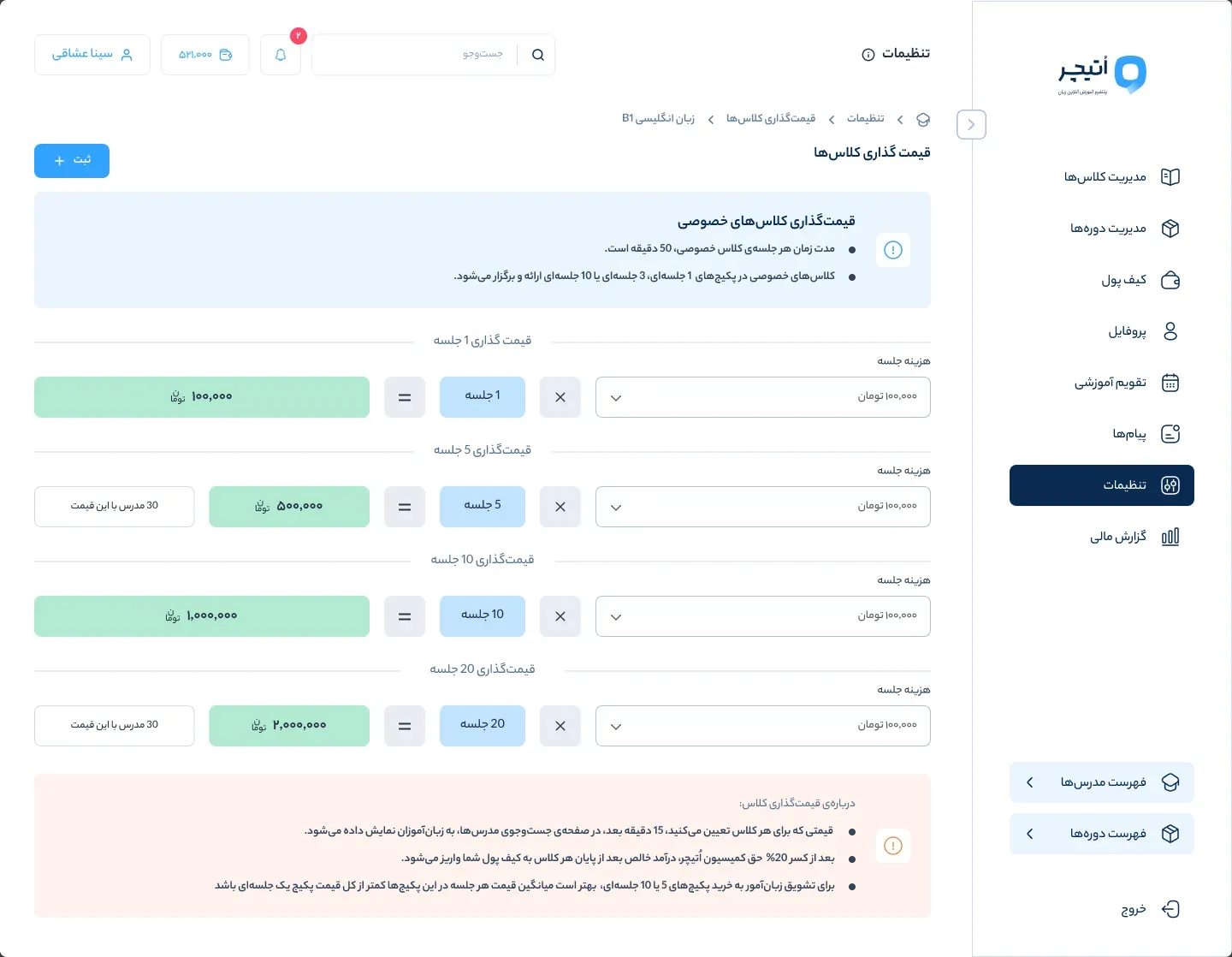
Once accepted, teachers run their own business from the panel: prices for a single session and for packages, their free hours, their courses, an intro video with recording tips, reviews to answer, and a dashboard with income and profile visits. The pricing spec also planned a chart of the average price other teachers set for the same lesson.
Teachers set their own prices, hours and courses, so their panel had to work as a small business tool, not just a profile.
Waiting for the interview
09Design system
One design system for every surface
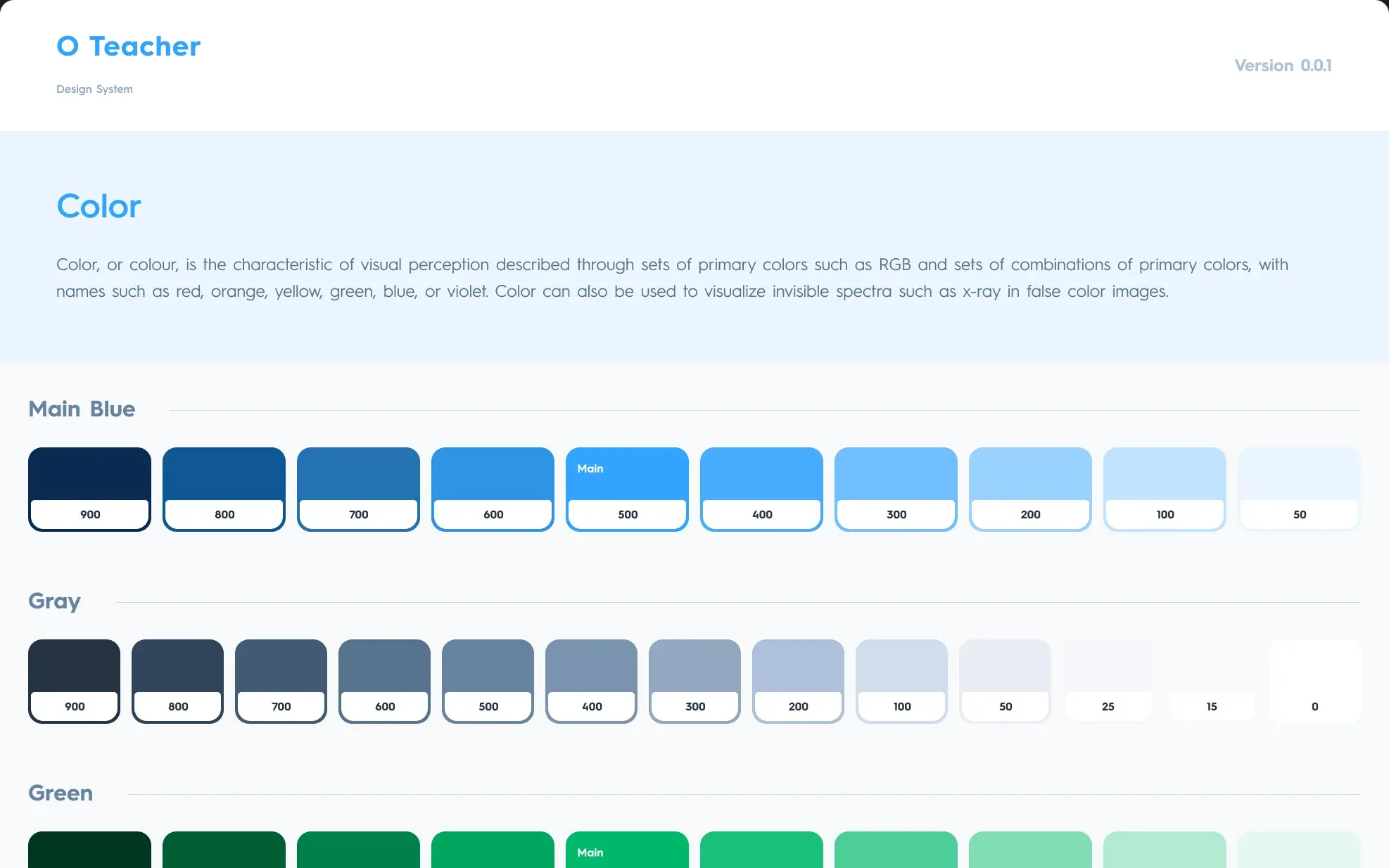
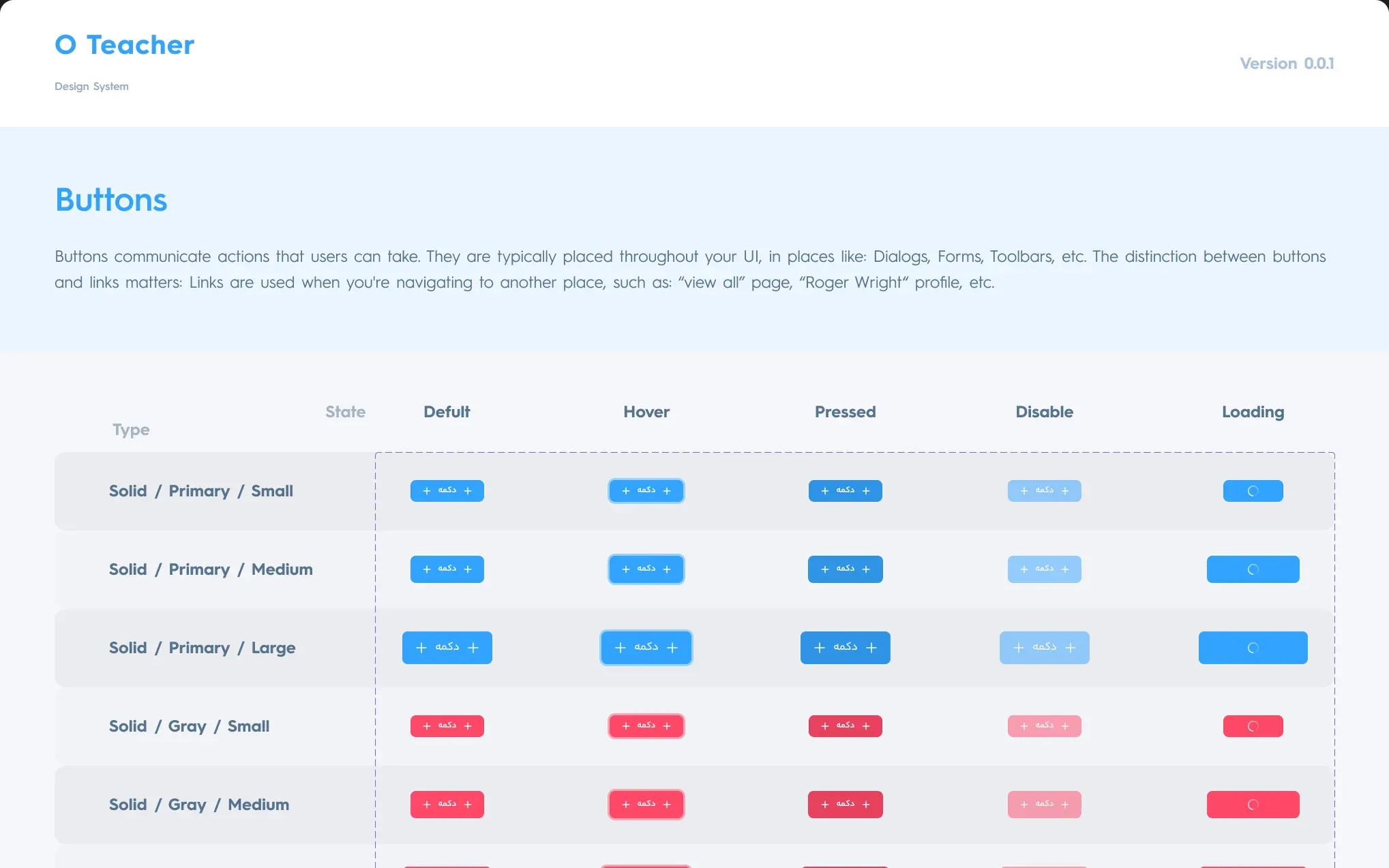
The first version of the design system holds 345 components in 24 sets: colour, typography, form fields, buttons, breadcrumbs, checkboxes and radio buttons, toggles, modals, toasts, profile blocks, the side menu, headers and footers for signed-in and signed-out users at three widths, brand icons, and light and dark modes.
It came before most of the pages, which is why the sign-up, the booking steps and the panels read as one product.
Colour
10Iteration
Five ideas, then two rounds of drafts
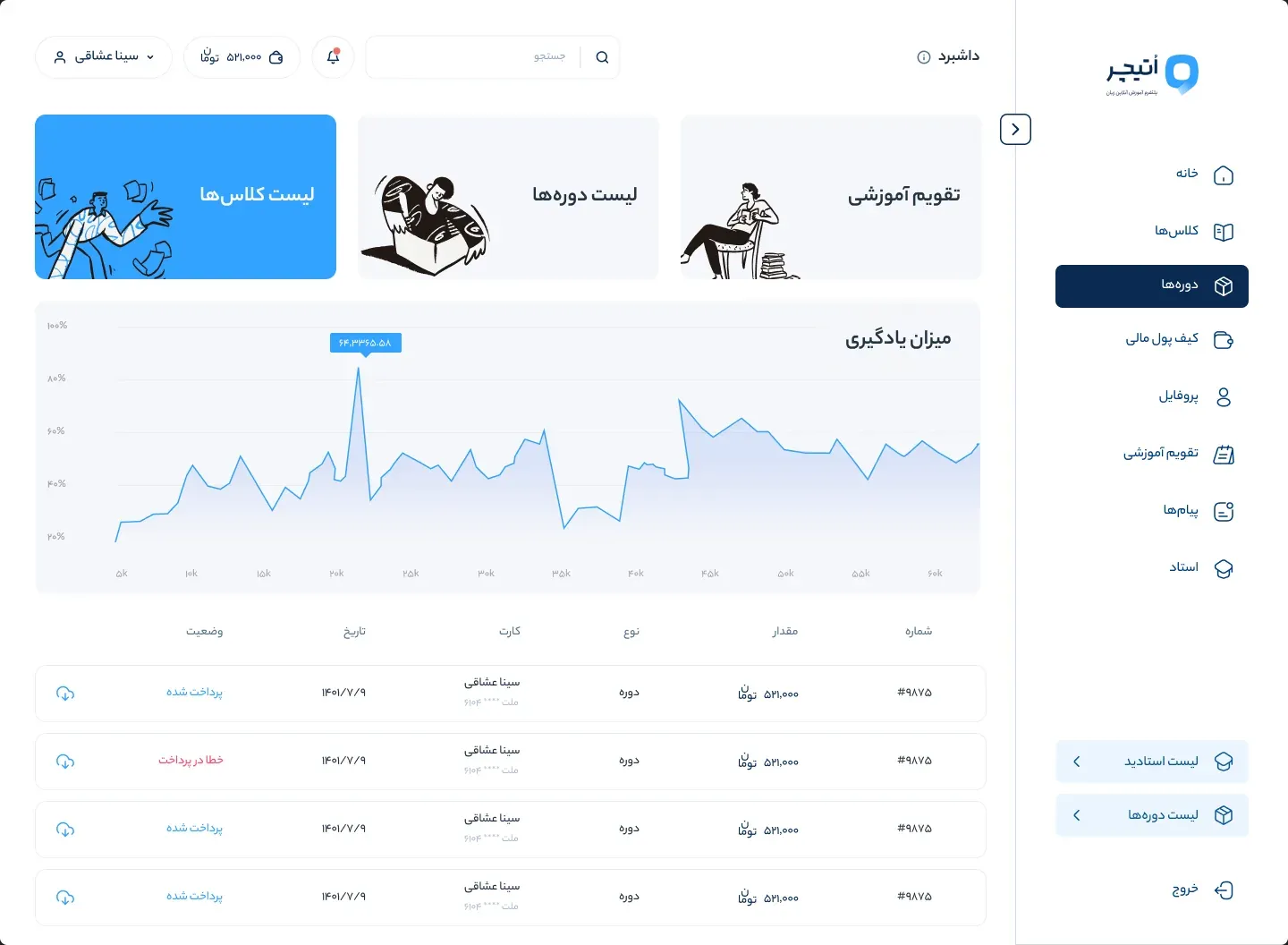
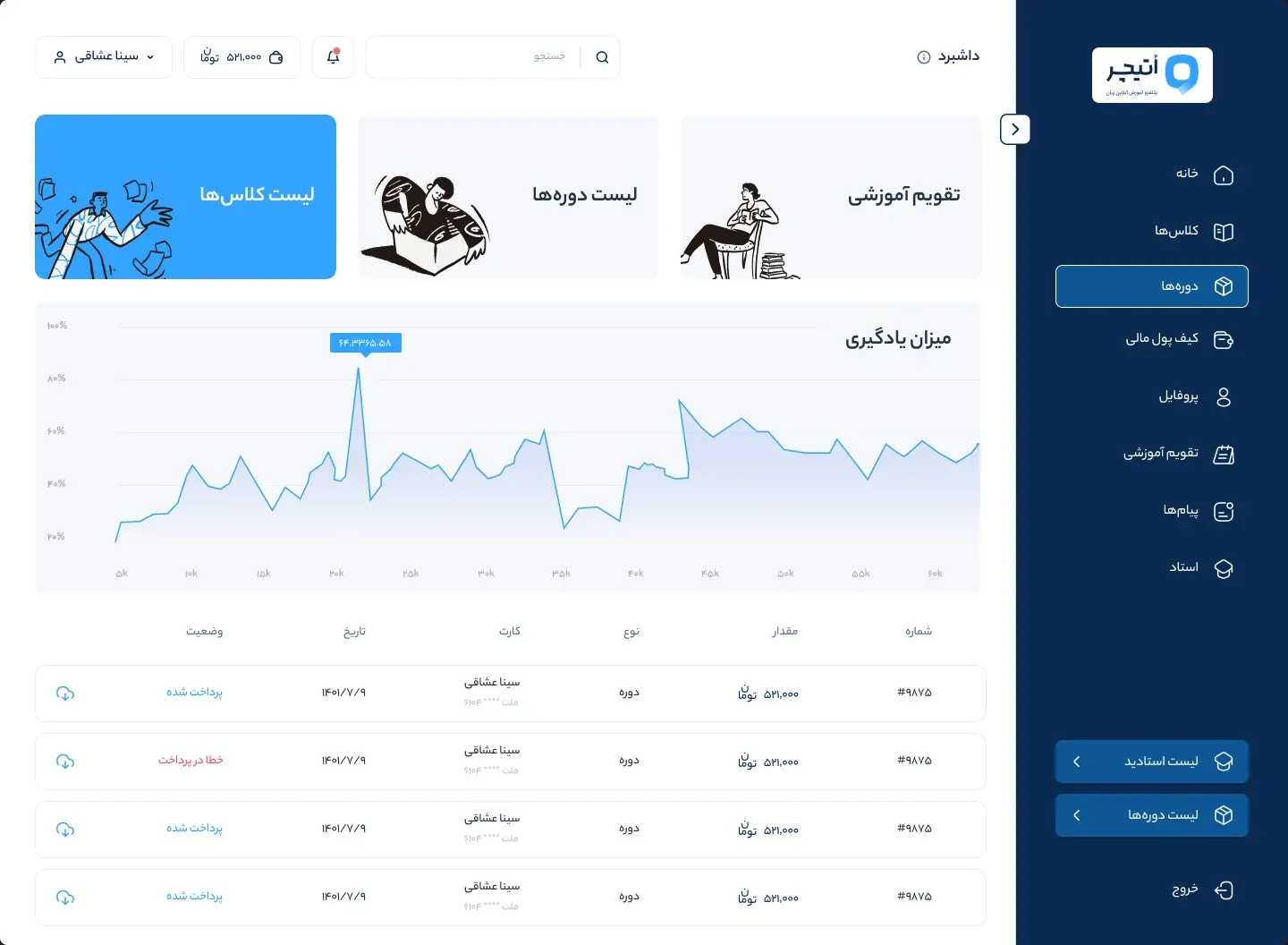
The work started wide. Five ideas for the website led to 36 concept screens: three of the ideas became seven versions of the user panel, each with the side menu open and closed, and the profile, the teacher list and the home page got four to six concepts each. The final panel kept a white menu with a navy marker, as in the first idea.
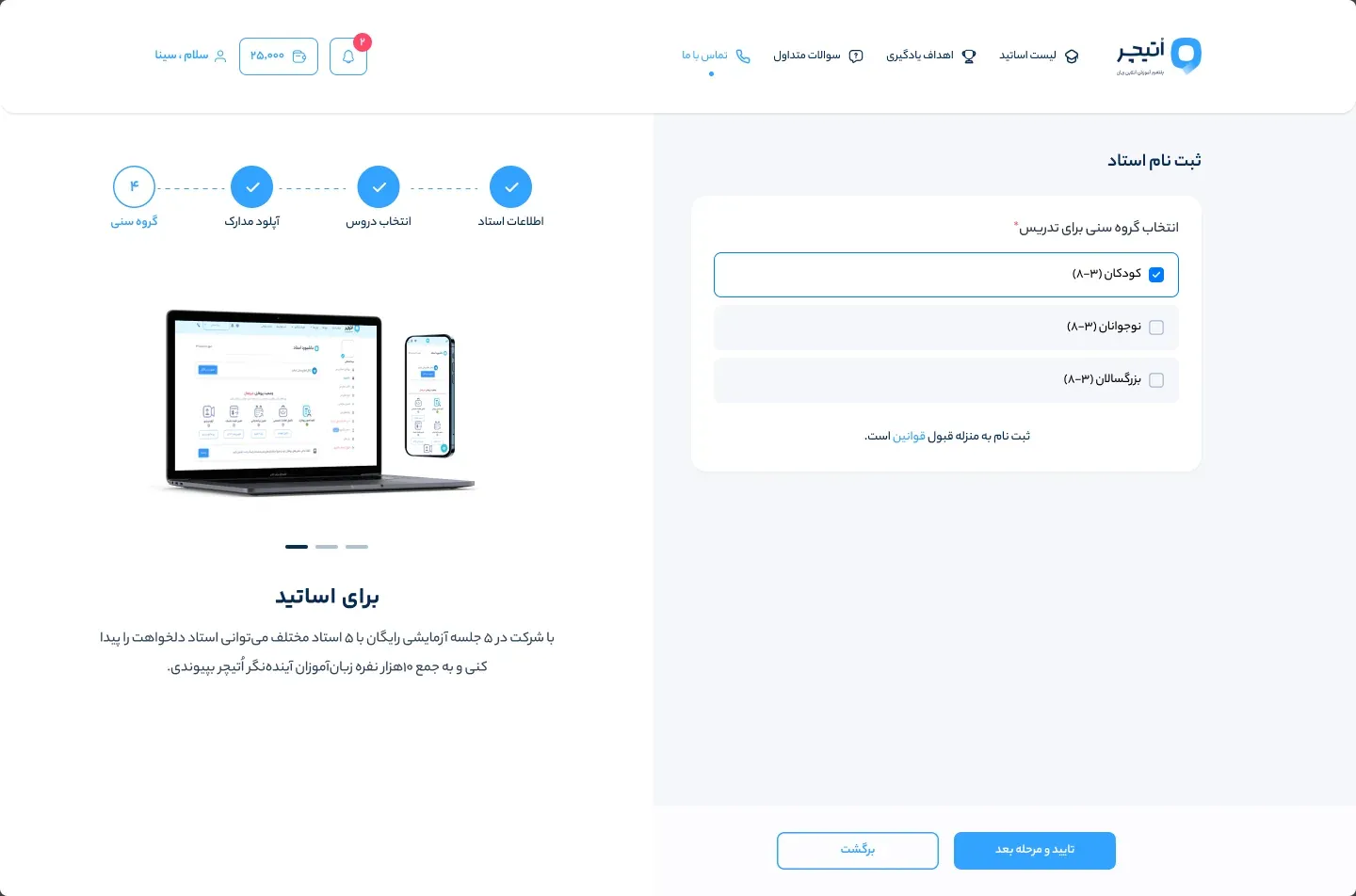
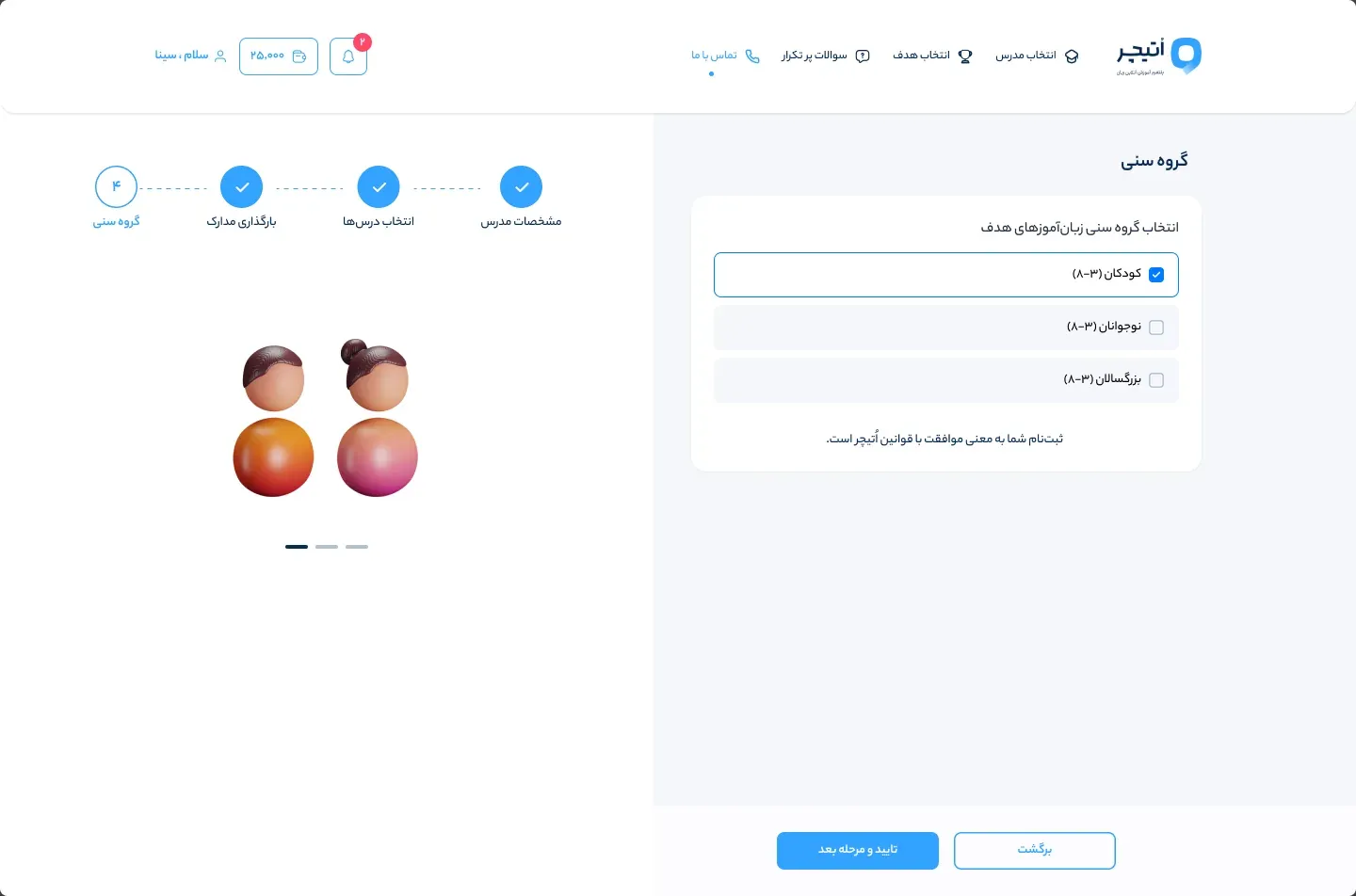
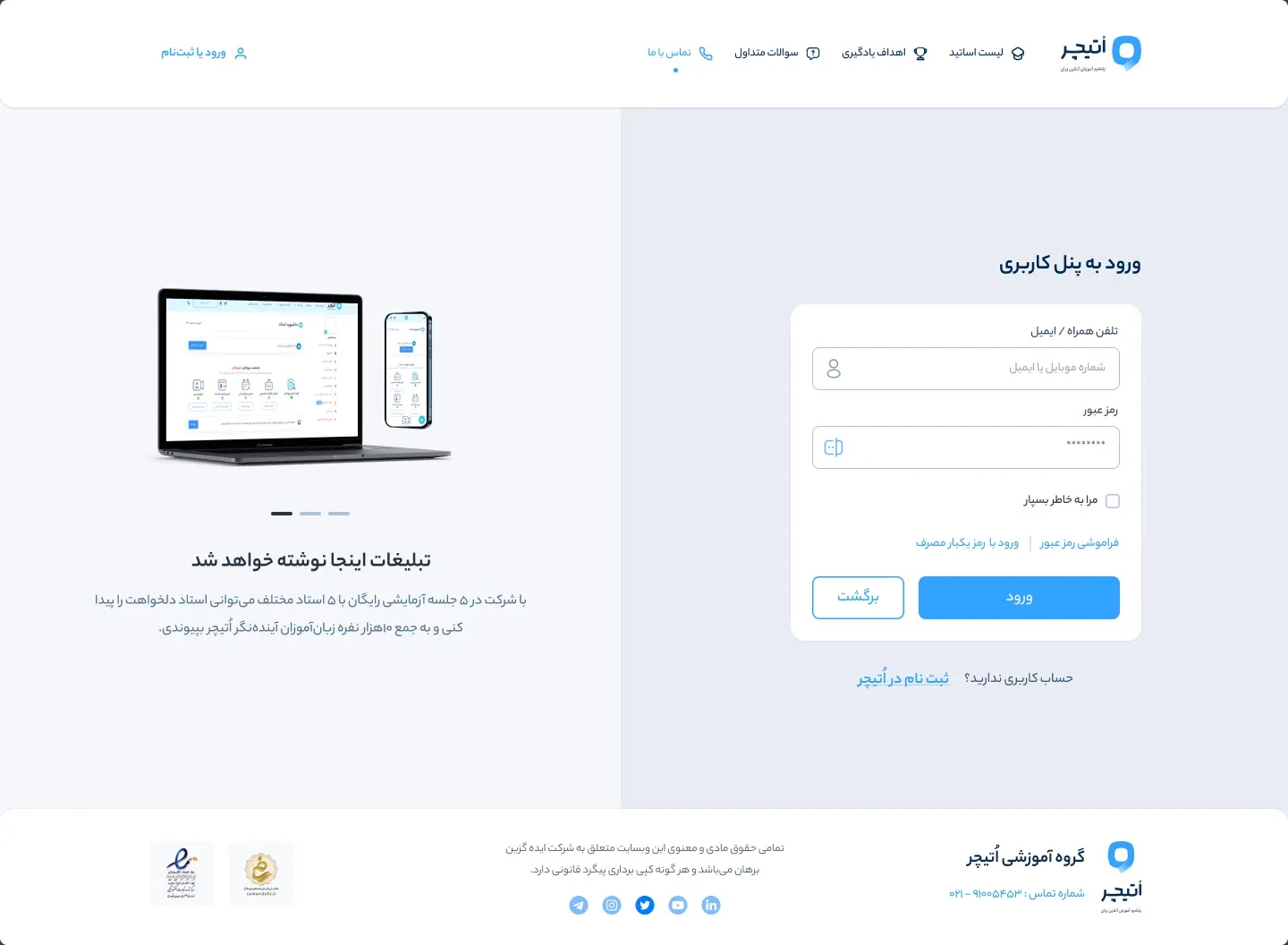
Most pages were then drawn twice. The home page headline moved from learning a language anytime and anywhere with a teacher you like, to a class with any teacher you choose, to a class designed around your need. The teacher sign-up swapped one laptop picture for an illustration per step, and its last screen changed from a welcome to a wait for the interview. The sign-in page traded a placeholder for five short promises.
The headline’s three versions move the focus from the teacher to the learner’s need.
Idea 1: white menu
First draft: “Learn a language anytime, anywhere, with a teacher you like”
Before
After
Before
After
11Testing
How the design was checked
The design was tested with people. A usability test of the teacher list ran with a moderator, in person and remotely, on a Figma prototype and on UsabilityHub. Its tasks: find a teacher, message one, book a trial class, and filter by time and by the teacher’s gender. It measured time on task, errors, completion and satisfaction, and a ten-second test checked what people remembered of the first screen.
Attention heatmaps compared the old and the new design on five key pages: the home page, the teacher list, a teacher profile, the class list and the teacher calendar. The new home page is about a quarter shorter than the old one.
On the old site, Sina had also planned click tracking for the home page, from the main call to action to the order of languages and the header and footer links, to see which parts earned their place.
12Panels
A panel for learners, an admin for the team
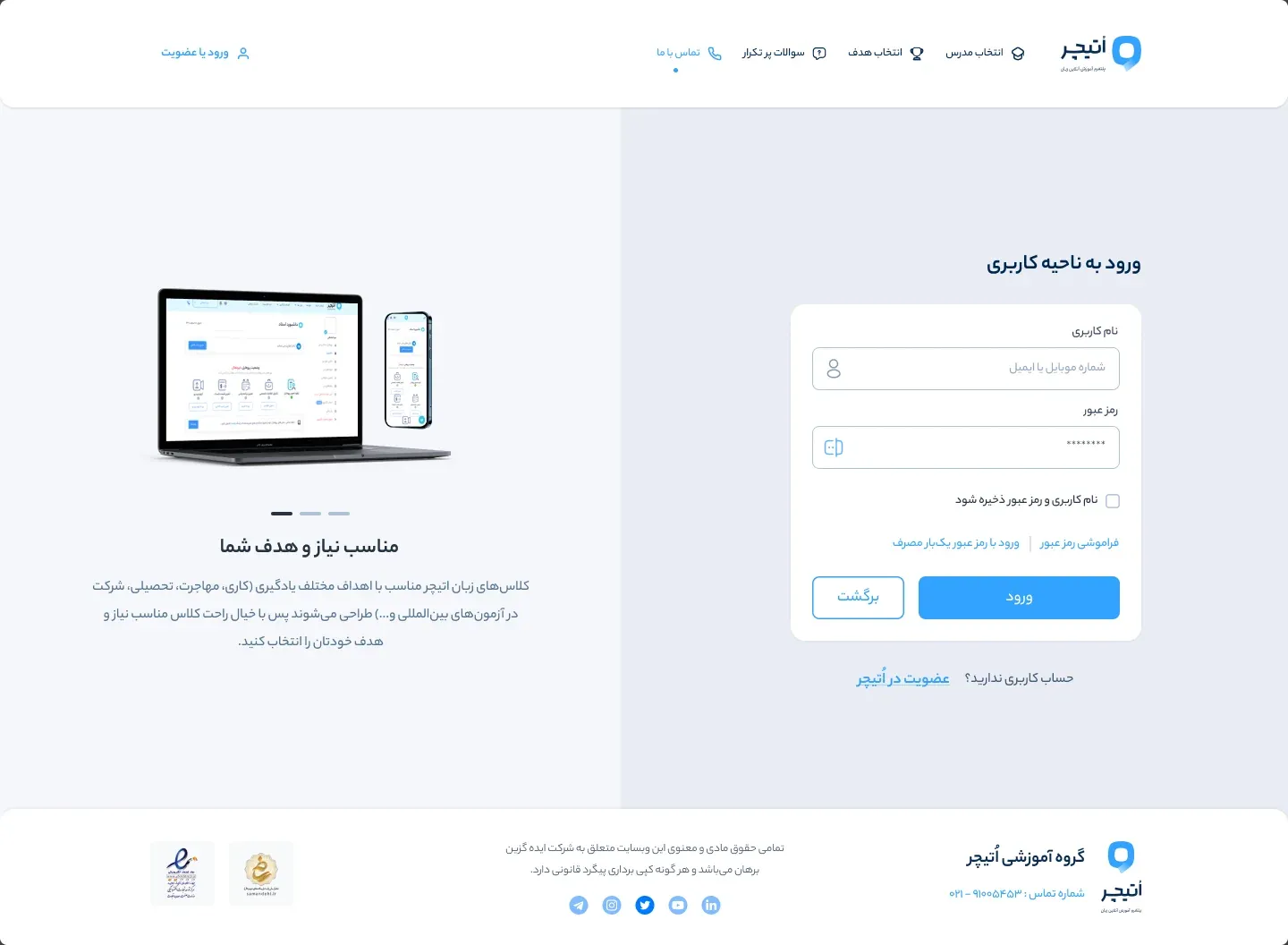
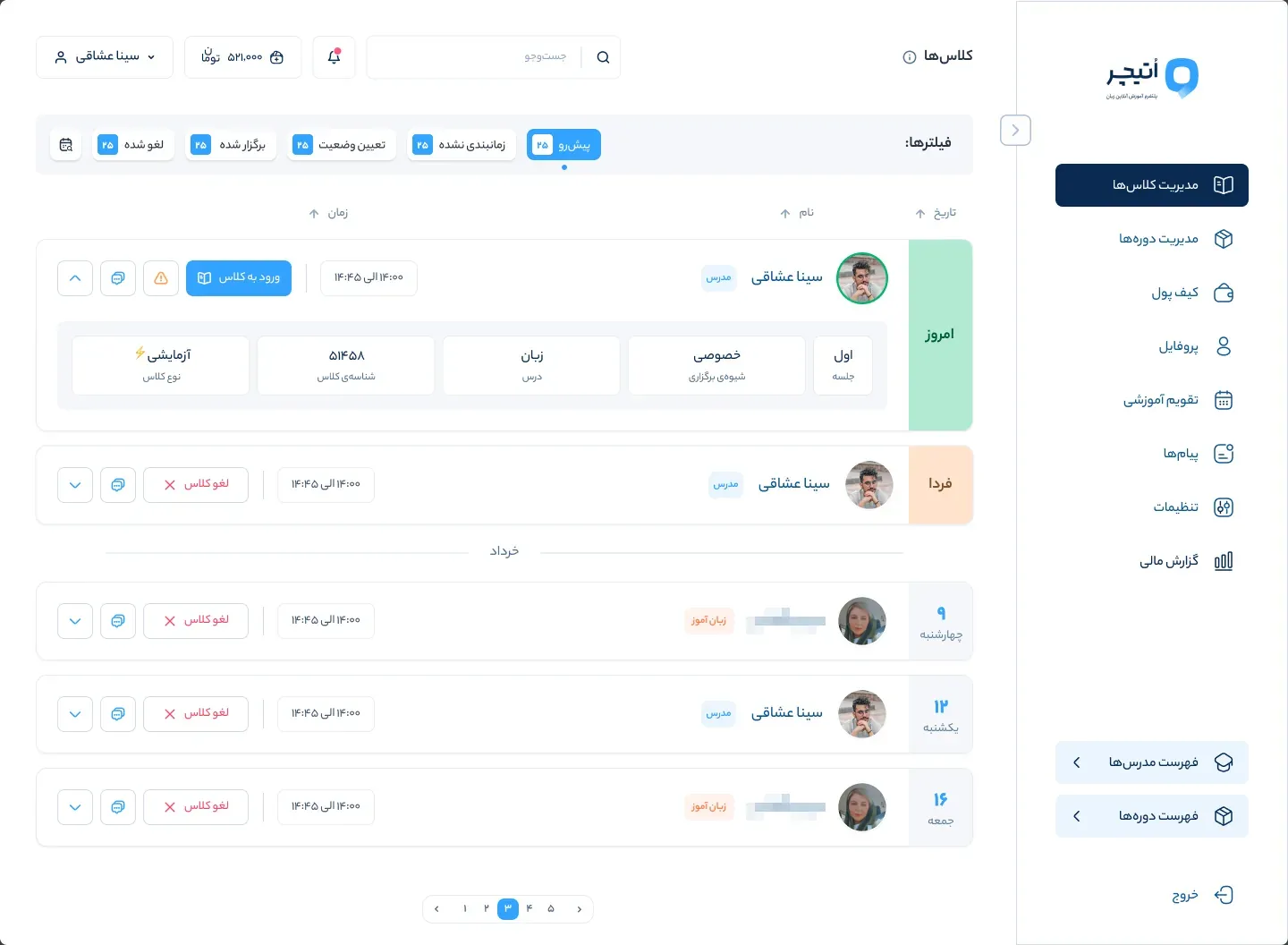
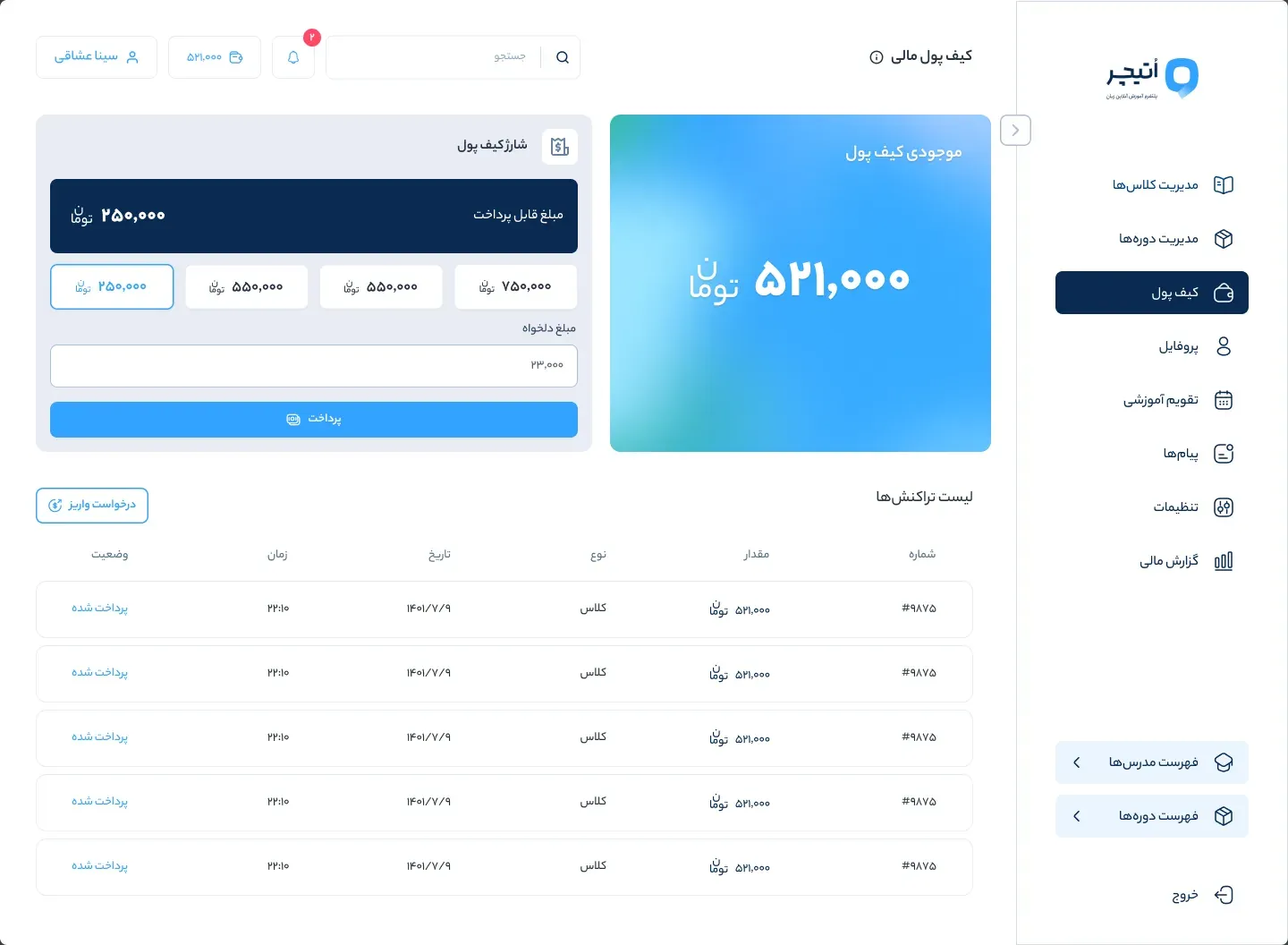
After sign-in, learners get one panel: their classes, sorted into upcoming, not yet scheduled, waiting for a status, held and cancelled; a calendar; a wallet with top-ups and transactions; a class-by-class financial report; messages; and a profile where they set a goal and a level. A class can be rated, reported or cancelled from a dialog, and the class list has a dark mode.
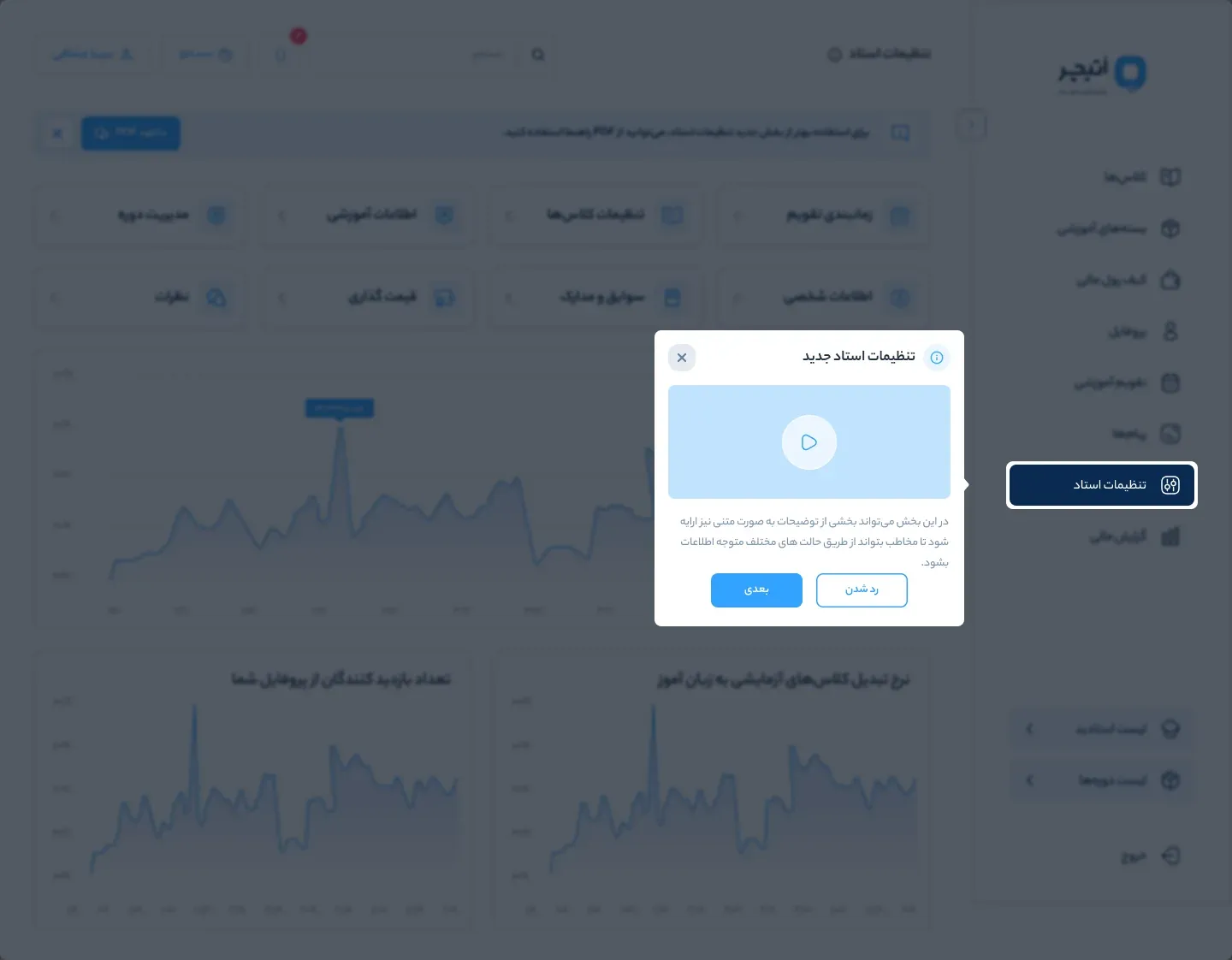
The admin is a smaller set: users searchable by ID, name, email and phone, classes filtered by type and status, and the teachers’ requests. Its information architecture is mapped below.
Classes
The admin’s areas and what each holds
01
Users list
Search and filter
Name
Role
Class reports
Payment reports
Messenger
Username
Reset password
Enable or disable roles
Edit information
02
Discount manager
Make a discount
List of discounts
Amount
Teacher’s share
OTeacher’s share
Status
13Outcomes
Shipped, and still the foundation
The new website and panel launched in 2023. Three years later oteacher.org still runs on this foundation, with the three-step finder on its home page, although the company has changed some sections since.
components in the design system
345
24 sets: colour, type, forms, buttons, menus, modals, and light and dark modes
Delivered output
screens at desktop and phone width
220
125 desktop pages and 95 phone screens, each also drawn at tablet width
Delivered output
screens of the old site reviewed
69
Each problem tagged visual, structure, product or copy, in February 2023
Delivered output
What was delivered
↳The new website
↳The new panel
14My role
Sina’s part
Sina designed all of it as the product designer, working with the product manager.
Owned
↳The review of the old site, the benchmark and the click-tracking plan
↳The information architecture, the user roles and the flows
↳The home page, the three-step teacher finder, the teacher and course pages
↳Booking, including the trial class
↳Teacher sign-up and sign-in
↳The user panel, the teacher settings and the course manager
↳The calendar and its user stories
↳The admin panel
↳The design system and the concepts
↳The usability test and the attention heatmaps
Co-owned
↳The strategy behind this design, with the product manager: the interviews, personas, brand position and roadmap
Collaborated
The product manager, throughout, including the specs for withdrawals and pricing
15What I learned
What I’d keep, and what I’d change
01
Move fast, from UI design to product strategy
In about a year the work ran from the product strategy, worked out with the product manager, to a review of the old site, the structure and the flows, a design system and 220 screens. The lesson I took from OTeacher: be very fast, and take on the whole range, from UI design to the strategy of the product.
02
Track the new site from launch day
The click-tracking plan covered the old home page. Running it on the new site from the first day would have given the redesign a baseline, and numbers to show here.
03
Archive old drafts for developers
Pages were drawn twice, and both versions stayed side by side. Moving the first drafts to an archive, and naming every screen for its page and state, would have shown developers at once which one to build.
16Every screen
All 220 screens, the concepts and the design system
The two indexes below hold every page and state at desktop width (1,440 pixels) and phone width (360 points): 125 pages and 95 screens. Where a page was drawn twice, only the final draft is shown, and the tablet width every page also has is left out. The 36 concept screens and the design system’s 17 boards follow.
Both indexes follow a learner: finding a teacher, booking, signing in, the information pages, then the user panel, the teacher settings and, on desktop, the admin and the landing pages. Personal details in the sample data, such as phone numbers, email addresses, bank numbers and a colleague’s name, are covered with pixelation.
StructureMarch: the information architecture of the website, both panels and the admin, the user roles and the main flows.
04
First draftsThe website, booking, teacher sign-up and sign-in, the user panel and the admin.
05
Teacher sideTeacher settings, pricing, the class list and the education calendar.
06
Second draftsNew versions of the home page, teacher settings, sign-up, sign-in and booking.
07
Calendars, courses and landing pagesThe calendar’s user stories, the course manager, help screens and an IELTS landing page came last.
02
Let visitors browse, and give booking its own pages
The old site squeezed booking into a pop-up. Now teachers, courses and calendars are open to visitors, and an account is asked for only at the moment of booking.
Alternatives
Sign-up at the first visit, which puts a form in front of the teachers.
Trade-off
Booking has to meet new and returning learners alike, so it needed two prompts: sign up first, or complete your details first.
Evidence
Booking runs over its own pages, with one screen for success and one for failure, for paid and trial classes alike.
03
Write the calendar as user stories first
An hour carries more states than anything else in the product. Writing the stories first made each state a rule rather than a guess.
Alternatives
Drawing the calendar first and naming its states afterwards.
Trade-off
Seven states to design and build up front, for fewer surprises when two people want the same hour.
Evidence
Eight stories, reused in the teacher’s calendar, the calendar a learner sees and the booking steps.
04
Make teachers apply in steps and wait for an interview
The strategy’s education unit wanted every teacher interviewed against a standard. The application gathers what the interview needs, and the admin holds the interview link, time and interviewer.
Alternatives
Open sign-up, with quality checked only after the first classes.
Trade-off
A slower start for new teachers, in exchange for a vetted list of teachers.
Evidence
Five sign-up screens, the apply flow, and a teacher-requests area in the admin.
05
Build the system before the pages
A website, two panels, an admin and three screen widths: one set of parts was cheaper than many.
Alternatives
Designing each surface on its own and reconciling them later.
Trade-off
Time spent on parts before the first page, repaid every time a screen reused them.
Evidence
345 components in 24 sets, shared by the website, the panels and the admin.
Invoice and payment
Payment failed
Figure 03Booking on desktop: the sign-up prompt, which appears only at this point, the invoice, and the screen for a failed payment.
The calendar on a teacher’s profile
Figure 04The same hours from both sides: the teacher opens free times, and a learner picks one on the teacher’s profile.
Prices per lesson and package
Dashboard with a first-visit tip
Figure 06The teacher’s side: the last sign-up step, pricing per lesson and package, and the dashboard on a first visit.
Buttons
Figure 07Two of the design system’s sets: colour, and buttons in each of their states.
Idea 2: navy menu
Idea 2, third variant: bright blue menu
Figure 08Three of the panel concepts: the same content under a white, a navy and a bright blue menu. The final panel kept the white one.
Second draft: “A class with any teacher you choose”
Final: “A class designed around your need”
Figure 09The home page headline in three drafts.
Figure 10Teacher sign-up, first step, in the first and the final draft: one laptop picture became an illustration per step.
Figure 11Sign-in in the first and the final draft: a placeholder line became five short promises.
Wallet
Figure 12The learner panel: classes by status, and the wallet.
03
Teachers list · Student list
Name
Search and filter
Class reports
Payment reports
Messenger
Teacher classes
Student classes
04
Class reports · Payment and financial reports
Search and filter
Report type
Description
Report status
List of payments
Classes held
Registration classes
Teachers
Students
Banks
05
Contact us
Search and filter
Name and last name
Email
Mobile
Subject
Message text
Date
06
Messenger
Message text
File
Sender
Status, seen or read
Received date
Submit date
07
Teacher requests
View request
Teacher information
Attachments
Certification
Lessons
Interview link
Interview time
Interviewer
Status
08
Poll manager
Search and filter in polls
Results of a poll
Chart
Make a poll
Status
↳
Free icon packs and 3D illustrations inside the screens come from third-party sets. Reference designs, and screenshots of the old site and of other products, are left out.
Figure 13125 desktop pages, by area. Open a page to see it whole.
Figure 1495 phone screens, by area. Open a screen to see it whole.
Figure 15The concept screens: 36 variants of the panel, the profile, the teacher list and the home page.
Figure 16The design system’s 17 boards. Open a board to read it in full.